
How PDF Order Automation Affects Inventory Allocation in Acumatica
How PDF Order Automation Affects Inventory Allocation in Acumatica
PDF order automation can improve inventory allocation in Acumatica by improving the sales-order data that allocation depends on. When customer purchase orders are converted into sales orders quickly and consistently, planners see demand sooner, item identities are less likely to be mistyped, and warehouse teams can act on cleaner order lines. The important distinction is that PDF automation creates and validates the transaction; Acumatica still controls whether and how stock is reserved, shipped, back ordered, or supplied from another warehouse.
DocVision PDF Scan and Import is designed to upload customer PDF documents, recognize customer and ship-to information, map PDF values to Acumatica fields, and generate sales orders. Its documented workflow includes customer-specific templates, inventory and customer cross-references, validation statuses, batch generation, and a Generic Inquiry for monitoring. Used correctly, those controls can make allocation decisions earlier and more reliable. Used without strong mappings and validation, automation can simply create incorrect demand faster.
Why PDF Order Automation Matters for Inventory Allocation
Inventory allocation starts with a trustworthy order line. Acumatica needs the correct customer, inventory ID, quantity, unit of measure, warehouse context, shipping rule, and requested timing before users can make sound fulfillment decisions. A PDF order may express those values in a customer-specific format or use the customer's own item number. DocVision standardizes that input by applying a template and translating source values into Acumatica values.
The effect is indirect, not magical. Official Acumatica guidance treats allocation as reservation of stock-item quantities on a sales order, often through line details and allocation splits. Availability can lead to partial allocation, additional splits, another allocation warehouse, a transfer, or a back-order outcome. Non-stock items cannot be allocated. Depending on the Acumatica version and configuration, stock allocation functionality also depends on enabled inventory features. None of these rules is replaced merely because the order originated from a PDF.
The PDF to Sales Order and Allocation Workflow
1 Configure the connection and PDF import settings
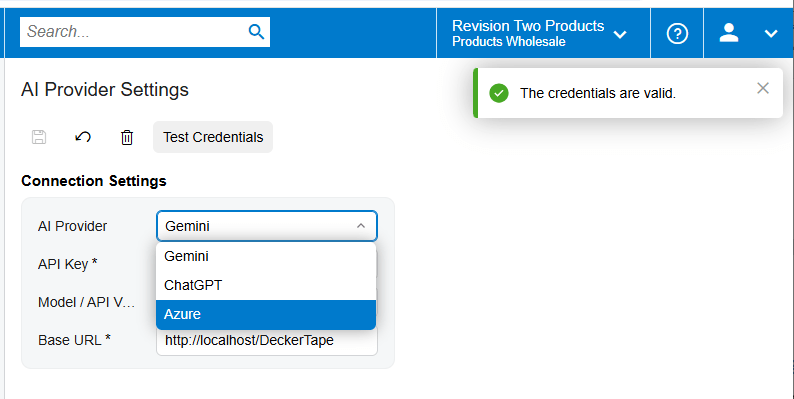
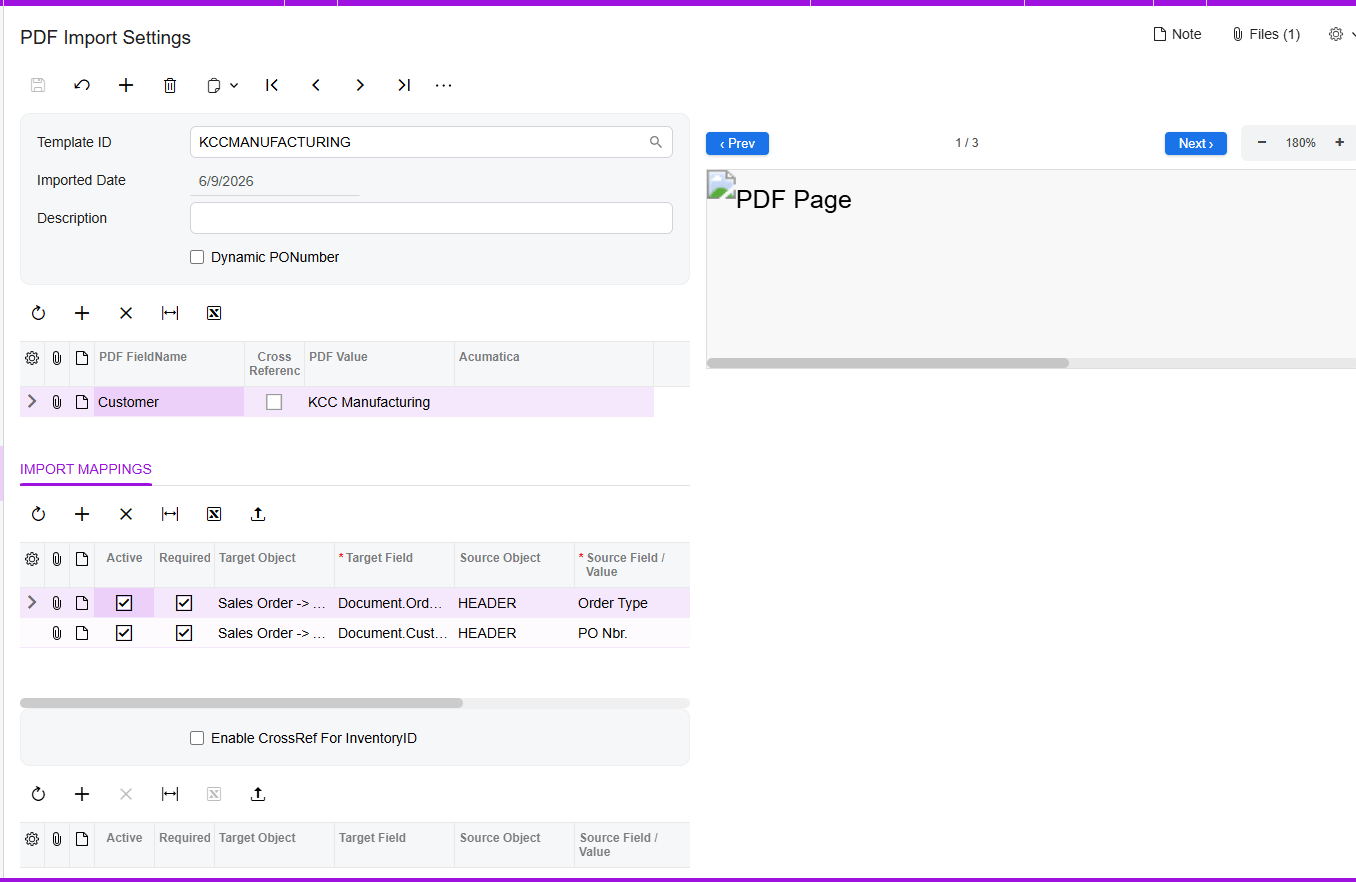
Begin with the environment and credentials required by the solution, then use Test Credentials to confirm the setup. In PDF Import Settings, create a template by importing a representative customer PDF. The source documentation describes a page viewer with previous-page, next-page, and zoom controls, which lets the configurator compare the original document with the extracted values while building the mapping.
2 Map header and detail data
The system populates PDF FieldName and PDF Value and proposes mappings between Target Object and Source Field. Review every proposed mapping. For sales-order header fields, the documented target is Sales Order, Advanced. For line data, use Sales Order, Details, Advanced. Only mappings with the Active checkbox selected are uploaded during sales-order generation, so an apparently complete template can still omit operationally important data if a row is inactive.
Pay particular attention to Order Type, Customer, Customer Location or Ship-To, document or purchase-order number, Inventory ID, quantity, unit of measure, and any warehouse or date field included in the implementation. The source specifically documents Template ID, document number, Order Type, and Customer on imported documents. It does not provide a complete standard list of allocation fields, so warehouse, location, shipping rule, dates, and allocation behavior should be confirmed against the organization's Acumatica configuration and the actual target fields exposed by the customization.
3 Resolve customer and inventory identities
Enable CrossRef for Inventory ID when customer documents use item codes that do not match Acumatica inventory IDs. This exposes the Inventory Cross-Reference tab, where users can map PDF item values manually or import mappings through Excel. A separate Customer Cross-Reference tab can map PDF customer and location values to Acumatica customers and locations.
4 Handle purchase order numbers deliberately
The Dynamic PO Number setting addresses PDFs with no identifiable purchase-order number. The documented workflow selects this option automatically and displays a warning that the mapping document has no number and requires an alternative PO number. The Release PO Number field then allows a header value to be mapped to an existing field value. This matters operationally because a stable source-document identifier helps prevent duplicate processing and supports reconciliation between the PDF, imported document, and generated sales order.
5 Validate before generating the sales order
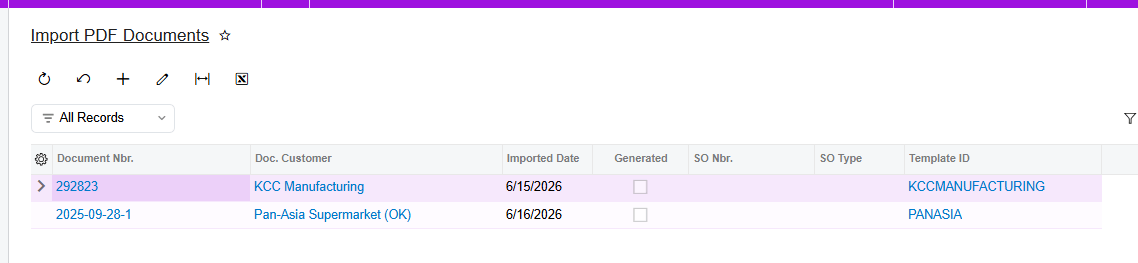
On Import Documents, select a document number to review the PDF, its mappings, and the retained Template ID. The interface uses green for a correctly mapped file that is ready to generate a sales order, red for an item-line error accompanied by an Error Message, and yellow for a warning such as an unmapped item. The Validate Items action attempts to map PDF items to Acumatica values and displays them in Details when the mappings already exist in Inventory Cross Reference.
Treat green as an automation checkpoint, not proof that stock is available or allocated. Before generation, confirm that quantities, units, item identities, customer, location, and order type match the PDF. If allocation is time-sensitive, also review the warehouse and requested dates after generation, because the supplied DocVision guide does not state that its color status checks real-time inventory availability.
6 Generate and review the sales order
Use Generate Sales Order from the document action menu, or use the modified generation screen for batch processing. The generation screen can filter by Document Number and create the corresponding order. After success, the imported record should show the order number and order type, and the Generated checkbox should be selected. The source document number should also be visible on the Sales Orders screen, giving operations a traceable path back to the PDF.
At this point Acumatica's order-management rules become decisive. Verify the order status and whether the selected order type places new orders on hold. Review availability and line details, then allocate stock manually or follow the configured fulfillment process. Where full quantity is unavailable, Acumatica documentation describes partial allocation and line splits; users may select another allocation warehouse, arrange a transfer, adjust quantity, or allow the configured shipping rule to determine whether a partial shipment, back order, or cancellation of the remainder is appropriate.
Key Fields and Settings That Influence the Result
1. Template ID: ties an imported document to the customer-specific parsing and mapping design.
2. PDF FieldName and PDF Value: show what the solution extracted from the source PDF.
3. Target Object and Source Field: control where each extracted value is written in Acumatica.
4. Active: determines whether a mapping is included when the sales order is generated.
5. CrossRef and Inventory Cross-Reference: translate customer item values into valid Acumatica Inventory IDs.
6. Customer Cross-Reference: translates customer and location values into Acumatica records.
7. Dynamic PO Number and Release PO Number: provide a controlled alternative when the PDF lacks a usable order number.
8. Order Type: invokes the applicable Acumatica sales-order workflow and defaults; confirm hold, shipping, and fulfillment behavior in Order Types.
9. Inventory ID, quantity, UOM, and warehouse: form the core demand signal to validate before allocation.
10. Shipping rule and requested dates: can affect whether an order waits for full availability, ships partially, back orders, or cancels a remainder; verify the values inherited by the generated order.
Monitoring and Validation After Go Live
Use the Import PDF Documents Generic Inquiry as the operational register. The documented GI includes document numbers, Template IDs, customer information, and document generation dates, with hyperlinks back to Import Documents. This supports exception review, throughput monitoring, and traceability. A daily control can compare imported documents, records marked Generated, and the sales orders actually created.
Add allocation-focused validation outside the capture status. Sample generated orders and compare the PDF to Customer, Location, Order Type, Inventory ID, UOM, Order Qty., Warehouse, and requested dates. Then inspect availability, allocated quantity or line splits, order hold status, and shipment eligibility in Acumatica. Track red and yellow imports, unmapped item codes, duplicate source numbers, orders generated without expected lines, and orders that remain unallocated because inventory is unavailable or a required workflow step was not completed.
Common Pitfalls
1. Assuming generation equals allocation. A created sales order records demand; stock reservation still follows Acumatica features, settings, availability, and user actions.
2. Activating incomplete mappings. Only active mapping rows are uploaded, so missing quantity, UOM, warehouse, customer location, or dates can distort fulfillment decisions.
3. Using weak item cross-references. A valid but incorrect Inventory ID is more dangerous than a visible unmapped-item warning.
4. Treating green status as inventory confirmation. The documented colors describe mapping readiness and errors, not a guarantee of available or reserved stock.
5. Batch-generating unresolved documents. Batch processing increases throughput, but it also multiplies the impact of a bad template or cross-reference.
6. Skipping reconciliation. Use the Generated checkbox, generated order number, source document number, and GI links to prove that each PDF produced the intended order once.
Frequently Asked Questions
Does PDF order automation automatically allocate inventory in Acumatica
Not based on the supplied DocVision documentation. It automates PDF import, mapping, validation, and sales-order generation. Inventory reservation remains an Acumatica order-management function governed by available stock, enabled features, order configuration, and the allocation or shipment workflow.
What mapping has the greatest effect on allocation accuracy
Inventory ID is critical because allocation evaluates a specific stock item, but quantity, UOM, warehouse, customer location, order type, and dates can be equally material. Validate the complete order line and the defaults applied to the generated order.
What should users do with yellow or red imported lines
For yellow item-mapping warnings, confirm that the customer item exists in Inventory Cross Reference and use Validate Items. For red lines, read the Error Message and correct the source mapping or reference data before generation. Do not use batch generation to bypass unresolved exceptions.
Can Acumatica allocate part of an order
Yes. Official Acumatica guidance describes partial allocation and line splits when the full requested quantity is unavailable. Remaining demand may be assigned to another warehouse, supplied through a transfer, adjusted, or handled according to the applicable shipping rule and workflow.
How can the business audit automated orders
Use the Import PDF Documents GI, its hyperlinks to Import Documents, the Generated checkbox, the generated order number and type, and the source document number carried to the sales order. Reconcile those records with sales-order status, allocation details, and shipment results.
Build a Controlled PDF Order Automation Process
The strongest implementation combines fast PDF capture with disciplined master data, cross-reference ownership, exception handling, and Acumatica allocation controls. If you want to assess your customer document formats, map the right sales-order fields, and design an end-to-end validation process, contact BizTech Services to plan a practical Acumatica PDF order automation rollout.
How to Keep CRV Quantities Consistent with Beverage Order Lines in Acumatica
How to Keep CRV Quantities Consistent with Beverage Order Lines in Acumatica
Keeping California Redemption Value or CRV quantities consistent in Acumatica depends on preserving the relationship between each beverage line and its automatically generated CRV line. Biz-Tech Services CRV processing copies the parent item quantity and warehouse to the associated non-stock CRV item, then carries the relationship through sales orders, shipments, and invoices.
The control is intentionally direct. Configure the beverage item with the correct CRV Item and CRV Amount, enable Include in CRV for the customer location, and monitor the Parent Item and Child Item fields on every downstream document.
What CRV Quantity Management in Acumatica Does
A CRV item is a non-stock item used in Acumatica inventory and sales processing to represent the environmental fee associated with eligible beverage products. When a qualifying parent item is added for an enabled customer location, Acumatica creates the CRV item as a child line with the same quantity and warehouse.
CRV Quantity Flow at a Glance
1. Create the fee as a non-stock CRV item.
2. Link the correct CRV Item to the beverage stock item on the Price Cost tab.
3. Set the CRV Amount on the beverage Stock Item General tab based on the applicable unit of measure.
4. Enable Include in CRV on the customer default location.
5. Add the beverage parent item to the sales order and verify that Acumatica creates the CRV child line.
6. Confirm that parent and child have the same quantity and warehouse.
7. Monitor Parent Item and Child Item on the sales order, shipment, and invoice to preserve the relationship.
Configure the CRV Item as a Non-Stock Item
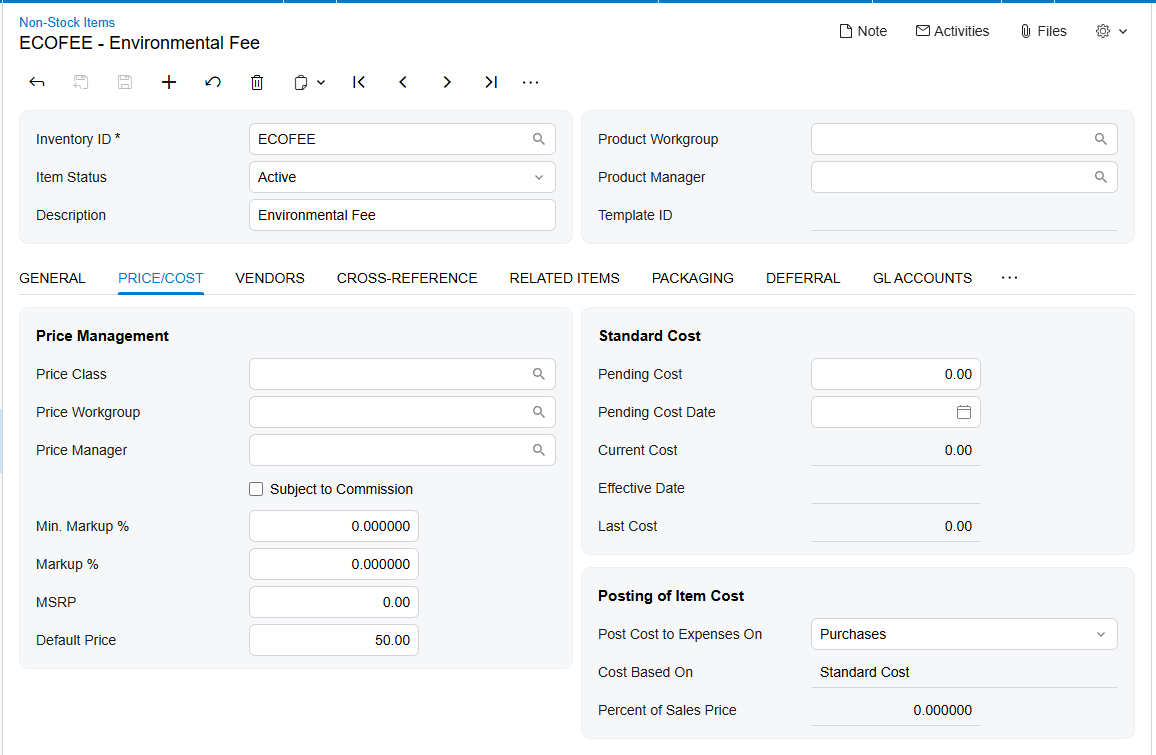
The associated CRV item must be configured as a non-stock item. It represents the fee rather than a separate physical beverage unit. This distinction lets the beverage remain the inventory item while the CRV line follows its quantity for sales and billing.
On the beverage Stock Item, open the Price Cost tab and select the appropriate value in CRV Item. This creates the item-level relationship used when Acumatica generates the child line.
Use CRV Amount and Unit of Measure Together
The CRV Amount field on the General tab of the beverage Stock Item determines the amount for the associated CRV item based on the selected unit of measure or UOM. The UOM therefore affects the fee amount while the beverage order quantity determines how many units of that fee line are created.
For consistent results, verify the beverage UOM before reviewing the CRV amount. If an order uses a different UOM from what the stock-item configuration anticipates, the quantity may still match while the expected fee amount differs. The source documentation does not describe conversion behavior, so businesses using multiple UOMs should validate each supported order scenario before production use.
Enable CRV at the Customer Location
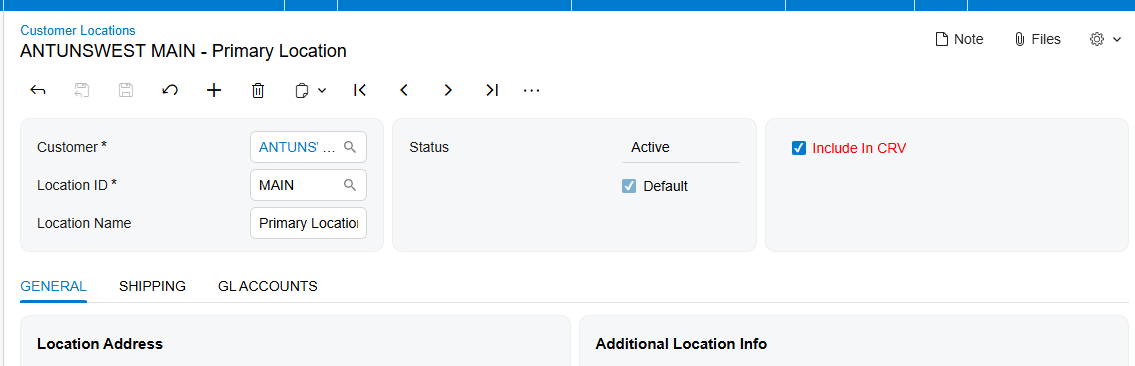
Include in CRV on the Customer Default Location is the customer-level switch. When selected, adding the linked parent beverage item creates the CRV child line. When cleared, the CRV line is not displayed on the sales order.
This setting explains many apparent quantity problems. Before changing item setup, confirm that the sales order uses the intended customer location and that Include in CRV is selected there.
How Acumatica Keeps Parent and Child Quantities Aligned
When the parent item is added, Acumatica automatically adds the associated CRV item as a new line. The child line receives the same quantity as the beverage line. This one-to-one quantity inheritance is the foundation of CRV consistency.
Users should review the two lines together whenever the beverage quantity changes. The source confirms automatic quantity creation but does not document manual-edit or recalculation behavior after later changes. A safe operating procedure is to verify the child quantity immediately after adding or changing the parent line and again before shipment and invoicing.
Keep the CRV Warehouse Consistent
The CRV child line also receives the same warehouse as the parent beverage item. Although the CRV item is non-stock, matching the warehouse preserves the operational relationship on the transaction and makes it easier to review the two lines as a pair.
There is no separate CRV warehouse mapping documented. Warehouse consistency comes from inheritance from the parent line. If the beverage warehouse is changed, users should confirm that the associated child line still shows the same warehouse before the order proceeds.
Monitor CRV Lines Through Shipment and Invoice
Parent Item and Child Item fields are available on Sales Orders, Shipments, and Invoices. These fields identify the beverage line and its associated CRV fee line after the order moves downstream.
On the shipment, compare the parent and child references with the sales order and confirm that the beverage quantity being fulfilled remains associated with the correct CRV line. On the invoice, confirm the same relationship, quantity, warehouse context, and CRV amount. This document-by-document comparison is the primary reconciliation method described by the source.
Reconcile CRV Quantity and Amount Before Release
CRV reconciliation should answer four questions. Is the correct non-stock CRV item linked to the beverage? Is Include in CRV enabled for the order location? Does the child line quantity match its parent? Does CRV Amount reflect the parent item UOM?
Then trace Parent Item and Child Item through the sales order, shipment, and invoice. Any broken link, missing line, warehouse mismatch, or quantity difference should be resolved before the invoice is released.
Where to Monitor CRV Quantities in Acumatica
1. Beverage Stock Item Price Cost tab: the linked CRV Item.
2. Beverage Stock Item General tab: CRV Amount and the UOM that determines the associated amount.
3. CRV non-stock item: correct item identity and non-stock classification.
4. Customer Default Location: Include in CRV and the location selected on the order.
5. Sales Order: parent beverage quantity, child CRV quantity, matching warehouse, Parent Item, and Child Item.
6. Shipment: parent and child references and the quantities carried into fulfillment.
7. Invoice: parent and child references, quantity relationship, and final CRV amount before release.
CRV Quantity Management in Acumatica Frequently Asked Questions
Why is the CRV line missing from the sales order
Verify that the beverage Stock Item has a CRV Item selected, the linked CRV item is non-stock, and Include in CRV is selected for the customer location used on the order.
What quantity should appear on the CRV line
The CRV child line should receive the same quantity as the parent beverage item.
What warehouse should the CRV line use
The associated child item receives the same warehouse as the parent beverage item.
How is the CRV amount determined
The CRV Amount field on the beverage Stock Item General tab determines the associated CRV item amount based on the selected UOM.
How do I match a CRV line to its beverage item
Use Parent Item and Child Item on Sales Orders, Shipments, and Invoices. These fields preserve the documented relationship through the transaction flow.
How should CRV lines be reconciled
Compare the linked item, quantity, warehouse, UOM-based amount, and parent-child fields on the sales order, shipment, and invoice before release.
Improve CRV Quantity Control with Biz Tech Services
Accurate CRV processing depends on a reliable relationship between beverage items and fee lines. Biz-Tech Services CRV processing automates line creation and carries the identifying fields through Acumatica so users can validate quantity and warehouse consistency.
To learn more about managing CRV lines and beverage quantities in Acumatica, visit https://biz-techservices.com
How to Track Gift Card Inventory and Balances in Acumatica
How to Track Gift Card Inventory and Balances in Acumatica
Tracking gift card inventory and balances in Acumatica requires two connected controls: inventory or numbering for each gift card issued, and a financial balance that changes as the card is sold, redeemed, or returned. Biz-Tech Services Gift Card Processing supports both stock and non-stock gift cards while keeping the serial number, original amount, used amount, and remaining amount visible inside Acumatica.
Stock gift cards are serialized inventory and must be received, assigned, and allocated. Non-stock gift cards are generated by numbering rules or entered manually. Once either type is sold, the Gift Card tab on Payment Methods becomes the central balance record.
What Gift Card Inventory and Balance Tracking in Acumatica Does
Gift Card Processing lets companies sell serialized gift cards and accept sold gift cards as payment. Acumatica stores Customer ID, Inventory ID, Gift Card Serial Number, Order Number, Gift Card Amount, Used Amount, and Remaining Amount. These fields connect the issued card to its owner, sale, and redemption history.
Gift Card Inventory and Balance Flow at a Glance
1. Create the Gift Card payment method and connect it to an allowed cash account.
2. Configure default items, external item mappings, and sequential or random numbering on Gift Card Preferences.
3. For stock gift cards, receive serialized inventory and record expiration dates when applicable.
4. For non-stock gift cards, generate or enter one gift card number for every ordered quantity.
5. Allocate a stock card serial number or assign a non-stock card number on the sales order.
6. Fulfill the sale so the card record appears on the Gift Card tab of Payment Methods.
7. Redeem the card through a sales order, Payments and Applications, or an invoice, then release the payment.
8. Monitor Used Amount, Remaining Amount, Gift Card History, and Gift Card Summary after every transaction.
Choose Stock or Non Stock Gift Card Inventory
A non-stock gift card does not require a physical inventory receipt. It can be sold in Acumatica or imported from an external system, and its number can be entered manually or generated from Gift Card Preferences. The sales order line uses the Ship Complete shipping rule. When quantity is greater than one, the Gift Card Numbers window should show the individual numbers associated with the selected line.
A stock gift card is created on Stock Items IN202500 and uses a Lot Serial Class. The payment method field is enabled for serialized items, so the gift card must be associated with the applicable Gift Card payment method. Stock cards are physical serialized inventory and therefore require receipt and allocation before sale.
Configure Gift Card Numbering and External Item Mapping
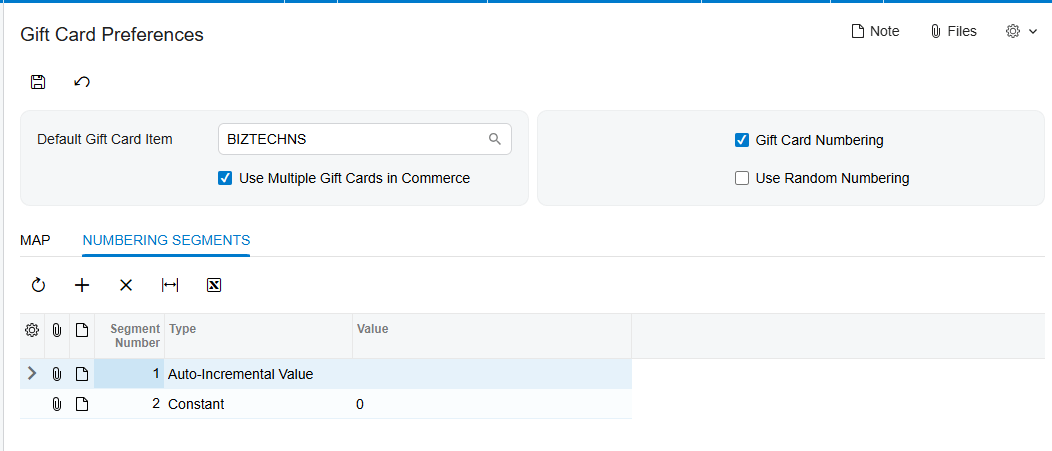
Gift Card Preferences controls how non-stock card numbers are created. Gift Card Numbering exposes Numbering Segments, where administrators define the structure and Auto-Incremental Value. The auto-increment value is required for automatic generation.
Use Random Numbering hides Numbering Segments and generates random numbers when the gift card item and quantity are entered on the sales order. The generated numbers appear in the Gift Card Numbers window. This option prevents users from relying on a predefined sequence.
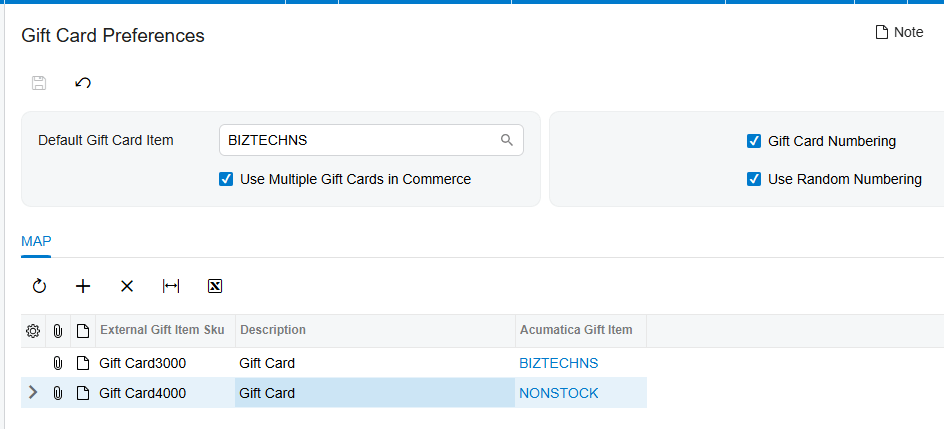
Default Gift Card Item identifies the non-stock item used for external gift cards during order import. If Use Multiple Gift Cards in Commerce is enabled, external Gift Card SKUs can be mapped to corresponding Acumatica items. If it is disabled, imported orders use the Default Gift Card Item.
Receive and Allocate Stock Gift Cards
The stock gift card receipt process establishes inventory availability. Add the Gift Card Item to the Receipts screen, enter the quantity, and generate serial numbers in Line Details. If Track Expiration Date is enabled on the serial class, enter the expiration date during receipt.
Allocation is required for stock gift card items. On Sales Orders, select the serial number in the Lot Serial Nbr. field of Line Details. The selection list shows available gift card serial numbers and their expiration dates. This allocation connects one physical card to one order quantity and prevents the same available serial from being assigned as if it were unallocated inventory.
Match Gift Card Quantity to Serial Numbers
Quantity is the core reconciliation rule for both inventory models. A stock order quantity must be supported by allocated serial numbers. A non-stock quantity must be supported by the corresponding number of generated or manually entered gift card numbers. When quantity exceeds one, users should open Gift Card Numbers and verify every number before fulfillment.
For imported orders, also confirm that the mapped or default Gift Card Item is correct. An item mismatch can make the transaction appear under the wrong inventory ID even when the serial number and amount are valid.
Track Gift Card Amount Used Amount and Remaining Amount
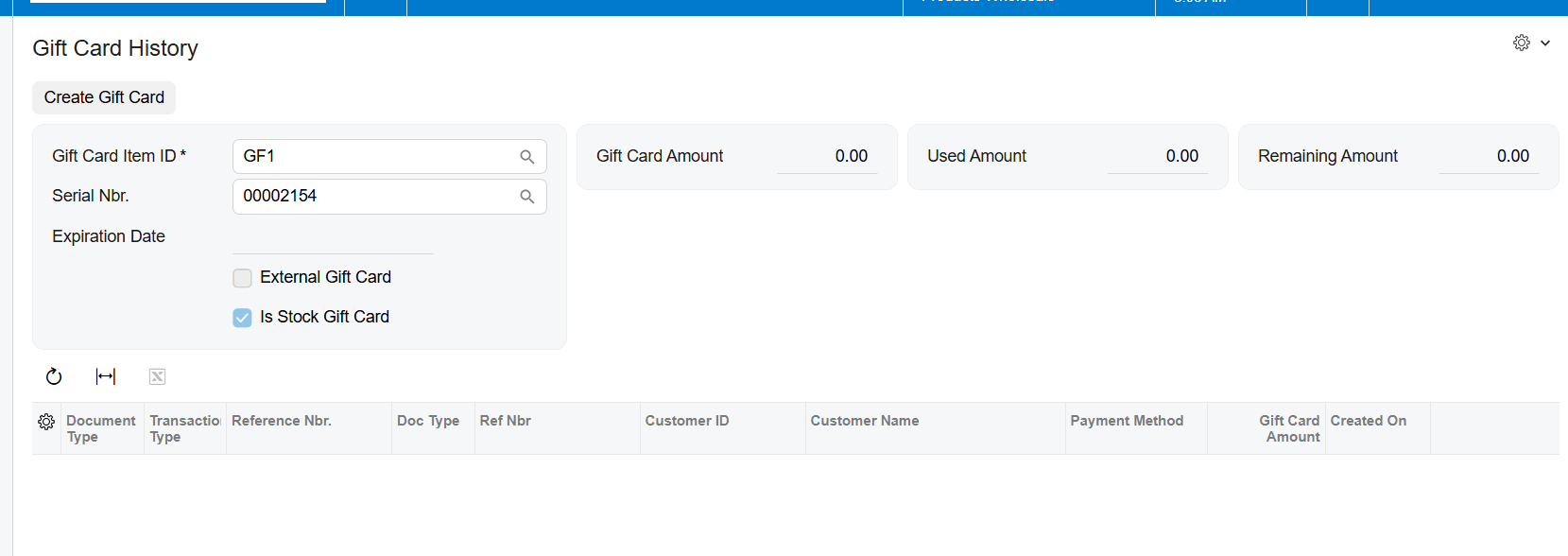
Once a gift card is sold, Acumatica stores its Customer Info, Order Info, and Gift Card Amount on the Gift Card tab of Payment Methods. Gift Card Amount is the original value. Used Amount accumulates released redemptions. Remaining Amount is the balance still available.
The balance update depends on transaction completion. When a gift card is used against an invoice, both the invoice and payment must be released before Used Amount and Remaining Amount update on Payment Methods and Gift Card History. An unreleased payment is therefore the first place to look when a redemption does not appear in the balance.
Redeem Gift Cards Without Losing Balance Control
A gift card can be selected as the payment method on Sales Orders, Payments and Applications, or Invoices. The Gift Card field appears after the Gift Card Payment method and cash account are selected. A Default Gift Card can populate automatically; otherwise users select the gift card item and enter the applicable serial number.
The payment must be released. After release, verify that Used Amount increased by the applied amount and Remaining Amount decreased by the same value. Then open Gift Card History through the serial number to confirm the transaction is associated with the expected order, invoice, and customer.
Reconcile Gift Card Returns
A gift card return uses an RC return order on Sales Orders. Users can add lines from the original sales invoice or add the applicable Gift Card Item and select its serial number from Sold Serial Numbers in Line Details. The receipt operation returns stock inventory through Shipments, and a released credit memo reduces the customer balance.
After the return is processed, Acumatica updates the amount information on Gift Card History. Reconciliation should confirm the returned serial number, inventory receipt where applicable, released credit memo, and resulting gift card amount history.
Where to Monitor Gift Card Inventory and Balances in Acumatica
1. Gift Card Preferences: Default Gift Card Item, external SKU mapping, Gift Card Numbering, Use Random Numbering, Numbering Segments, and Auto-Incremental Value.
2. Stock Items and Lot Serial Classes: payment method, serial class, Track Expiration Date, and received serial numbers.
3. Sales Orders: item quantity, Gift Card Numbers, Lot Serial Nbr., allocated serials, expiration dates, and Ship Complete behavior.
4. Payment Methods Gift Card tab: Customer ID, Inventory ID, Gift Card Serial Number, Order Number, Gift Card Amount, Used Amount, and Remaining Amount.
5. Gift Card History: stock or non-stock indicator, external gift card indicator, and the transactions associated with the serial number.
6. Payments and Applications and Invoices: payment method, cash account, gift card item, serial number, applied amount, and release status.
7. Gift Card Summary: current summary information and any exchange with an external system.
8. Returns: RC order, Sold Serial Numbers selection, receipt confirmation, credit memo, and updated history.
Gift Card Inventory and Balance Tracking Frequently Asked Questions
Why is a stock gift card serial number unavailable on the sales order
Confirm that the card was received, its serial number was generated, and it remains available. Also verify that the item uses the correct Lot Serial Class and that the selected serial has not already been allocated.
How many gift card numbers should an order contain
The assigned gift card numbers should match the gift card quantity. When quantity is greater than one, review the Gift Card Numbers window for the selected line.
Why did the remaining gift card balance not change
Confirm that the payment was released. For invoice-based redemption, both the invoice and payment must be released before Used Amount and Remaining Amount update.
Where can I check a gift card balance in Acumatica
Use the Gift Card tab on Payment Methods to review Gift Card Amount, Used Amount, and Remaining Amount. Open the linked serial number for transaction-level detail in Gift Card History.
Improve Gift Card Control with Biz Tech Services
Reliable gift card control joins quantity, serial identity, allocation, payment release, and balance history. Biz-Tech Services Gift Card Processing keeps these records connected in Acumatica for both physical stock cards and generated non-stock cards.
To learn more about tracking gift card inventory and balances in Acumatica, visit https://biz-techservices.com
Check here for video-details: https://www.youtube.com/watch?v=FyVcs9bR5NY
How to Track Consignment Inventory at Customer Locations in Acumatica
How to Track Consignment Inventory at Customer Locations in Acumatica
Tracking consignment inventory at customer locations in Acumatica requires a clear link between the customer, the consignment warehouse, the shipped quantity, the sold quantity, the returned quantity, and the remaining open balance. Biz-Tech Services Consignment Processing keeps those values connected so users can see where company-owned stock is located and reconcile what the customer still holds.
The operational model is simple: inventory leaves a standard warehouse, enters a designated consignment warehouse, and remains there until the customer sells it or returns it. Acumatica records each transition through consignment orders, transfer-type purchase receipts, invoice orders, return orders, and physical inventory documents.
What Consignment Inventory Tracking in Acumatica Does
Consignment Processing manages the location, quantity, and valuation of inventory held at consignee locations. It distinguishes sold stock from unsold stock, supports invoices for consumed items, and returns unsold items directly from the original consignment order. The customer location and warehouse assignments determine where inventory is tracked.
Consignment Inventory Flow at a Glance
1. Designate an Acumatica warehouse for consignment use and assign the applicable warehouse to the customer.
2. Create a consignment sales order using the configured consignment order type and a standard source warehouse on each line.
3. Confirm the shipment and run Update IN to move quantities into the destination consignment warehouse.
4. Use Consignment Sell Items to invoice quantities sold or consumed by the customer.
5. Use Consignment Return Items to move unsold quantities back through a consignment return order.
6. Use a consignment physical inventory count to compare Book Qty with Physical Qty and generate an invoice for the difference.
7. Monitor order status and open quantities until every shipped unit has been sold or returned and the order closes.
Configure the Consignment Warehouse and Customer Location
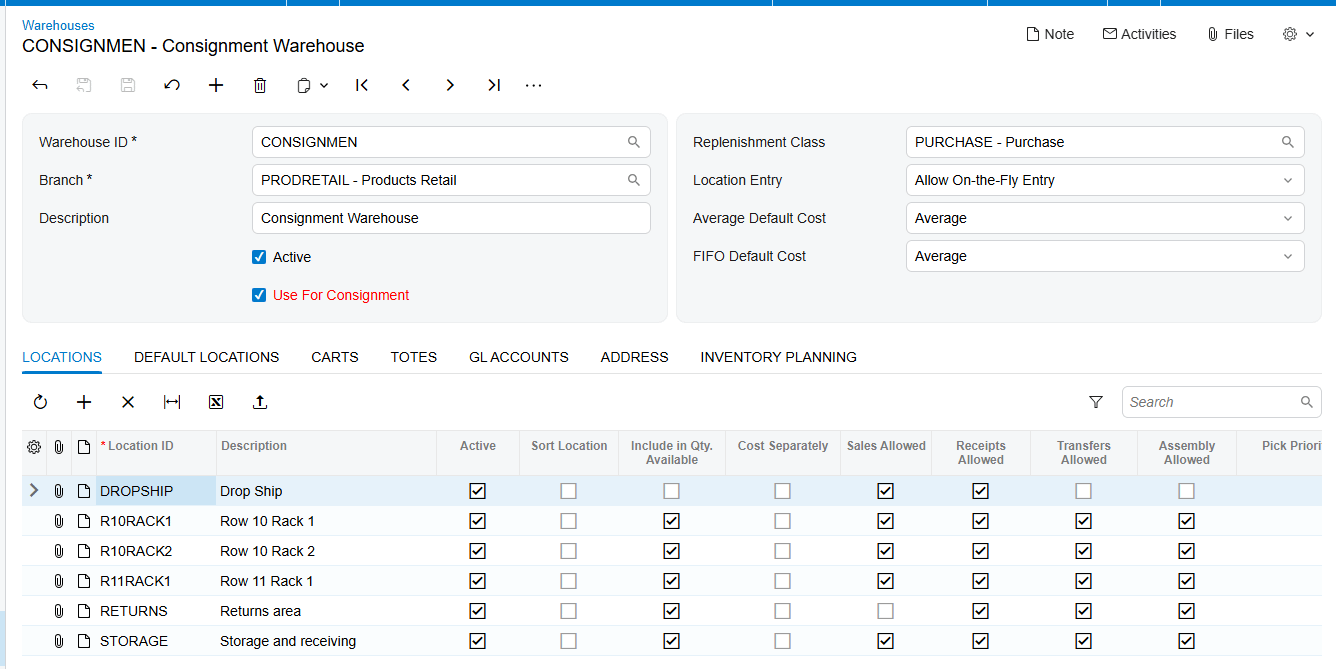
The warehouse is the location anchor for consignment inventory. On Warehouses form IN204000, the Use for Consignment checkbox marks a warehouse as eligible for the Consignment Warehouse field in Sales Order Preferences SO101000. The configured default warehouse is selected when a consignment order is created.
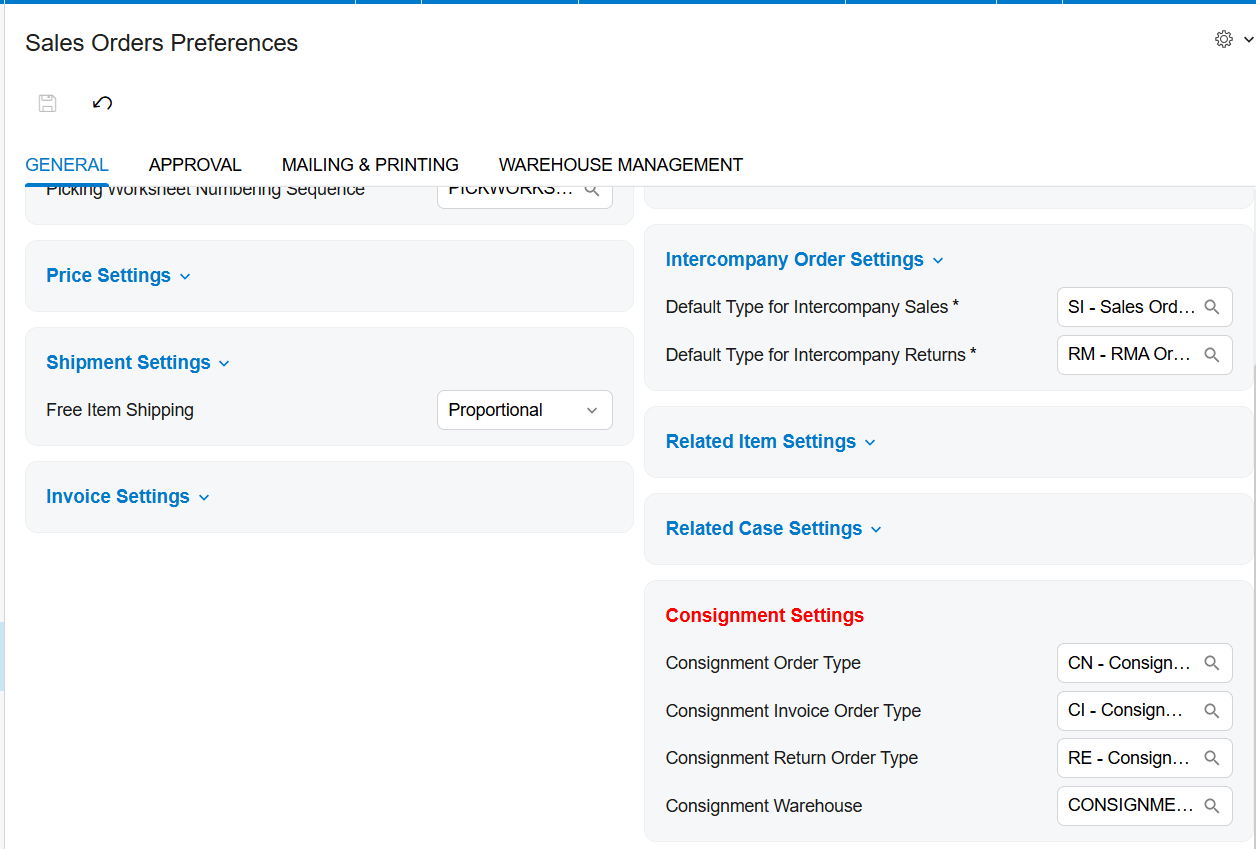
A customer-specific consignment warehouse overrides the default from Sales Order Preferences. This precedence matters when one business serves multiple customer locations. Each customer should point to the warehouse that represents the physical consignee location being tracked.
The warehouse roles are intentionally separated. A consignment warehouse can be used only as the destination warehouse, while a standard non-consignment warehouse can be used only on the order lines. Acumatica displays an error when those roles are reversed.
Move Inventory from the Main Warehouse to the Customer Location
The consignment order begins on Sales Orders with the configured Consignment Order Type. The source documentation uses CN as its example. Users select the customer, add the items and quantities, then complete shipment confirmation.
After shipment confirmation, Update IN performs the inventory transition. The system issues the items from the main warehouse and receives them into the selected consignment warehouse. It also automatically generates and releases a transfer-type purchase receipt. This receipt is the inventory evidence that the quantity moved from internal stock to the customer location.
Why Update IN is a critical control point
A confirmed shipment alone does not complete the documented consignment inventory update. Users should verify that Update IN was executed and that the transfer-type purchase receipt exists and was released. If those records are missing, the physical stock may have moved while the Acumatica balance has not reached the consignment warehouse.
Understand Open Consignment and Partial Consignment Quantities
The consignment order status communicates how much of the ordered quantity has reached the customer location. Open means none has shipped. Consignment means all ordered quantities have shipped and are now consignment inventory. Partial Consignment means only part has shipped and some quantity remains pending. Closed means all shipped items have ultimately been sold or returned.
When the order is in Consignment or Partial Consignment status, the Consignment Sell Items and Consignment Return Items actions become available. These status gates help prevent users from selling or returning quantities before Acumatica recognizes them as consigned inventory.
Track Sold Quantities and Consignment Invoices
Consignment Sell Items opens an Item Selection window where users choose the items and quantities sold by the customer. Add and Close generates a Consignment Invoice Order with the selected warehouse, items, and quantities. After the invoice is prepared and released, the Cons. Sold Qty. on the original consignment order is updated.
Cons. Sold Qty. is the main sold-inventory field. Reconcile it against released consignment invoices rather than treating a created invoice order as final. The quantity update occurs after invoice preparation and release, so unreleased documents can explain a difference between what users selected and what the original order reports.
Track Unsold Quantities and Consignment Returns
Consignment Return Items uses the same selection concept for stock the customer did not sell. After users select items and quantities, Acumatica creates a Consignment Return Order. The return follows a process similar to the original consignment order, including Update IN and creation of a purchase receipt.
Return reconciliation should confirm the selected return quantity, the generated return order, the Update IN action, and the purchase receipt. The order cannot close until every shipped unit has been accounted for as sold or returned.
Reconcile Customer Location Stock with Physical Inventory
Physical inventory provides the strongest reconciliation control for consignment stock held outside the company warehouse. On Physical Inventory Types IN208900, create a type with Consignment Inventory Count selected. The Customer and Location fields then become available and should identify the consignee being counted.
On Prepare Physical Count, select the consignment physical inventory type. Acumatica displays the relevant inventory IDs and Book Qty. For consignment counts, Book Qty is the sum of Open Qty from the Item Selection windows of related consignment orders for the selected customer and warehouse.
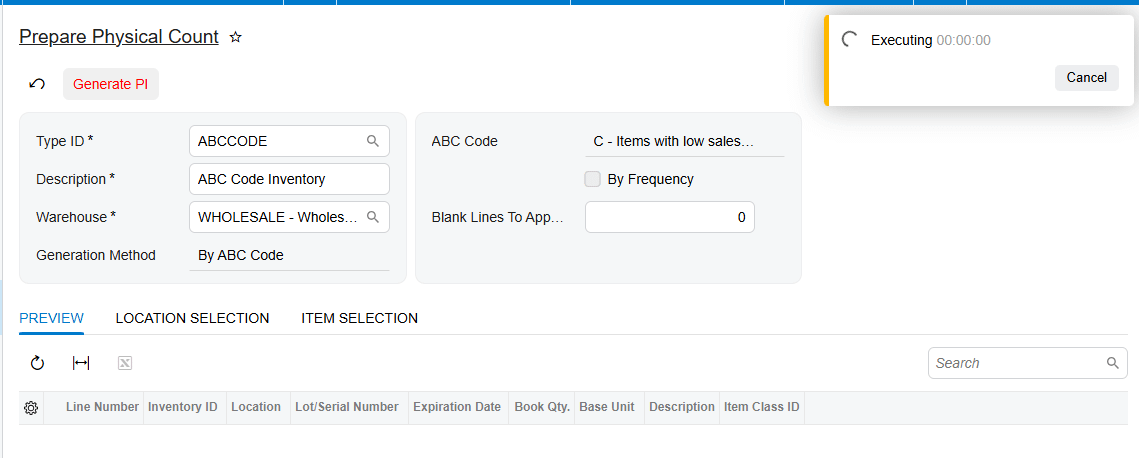
Generate PI opens Physical Inventory Review. Users enter the actual count in Physical Qty., finish counting, and complete the physical inventory. Acumatica then creates a Consignment Invoice Order based on the recorded physical quantities using the standard Consignment Sell Item process. After releasing the invoice, verify that Open Qty on the original consignment order reflects the new balance.
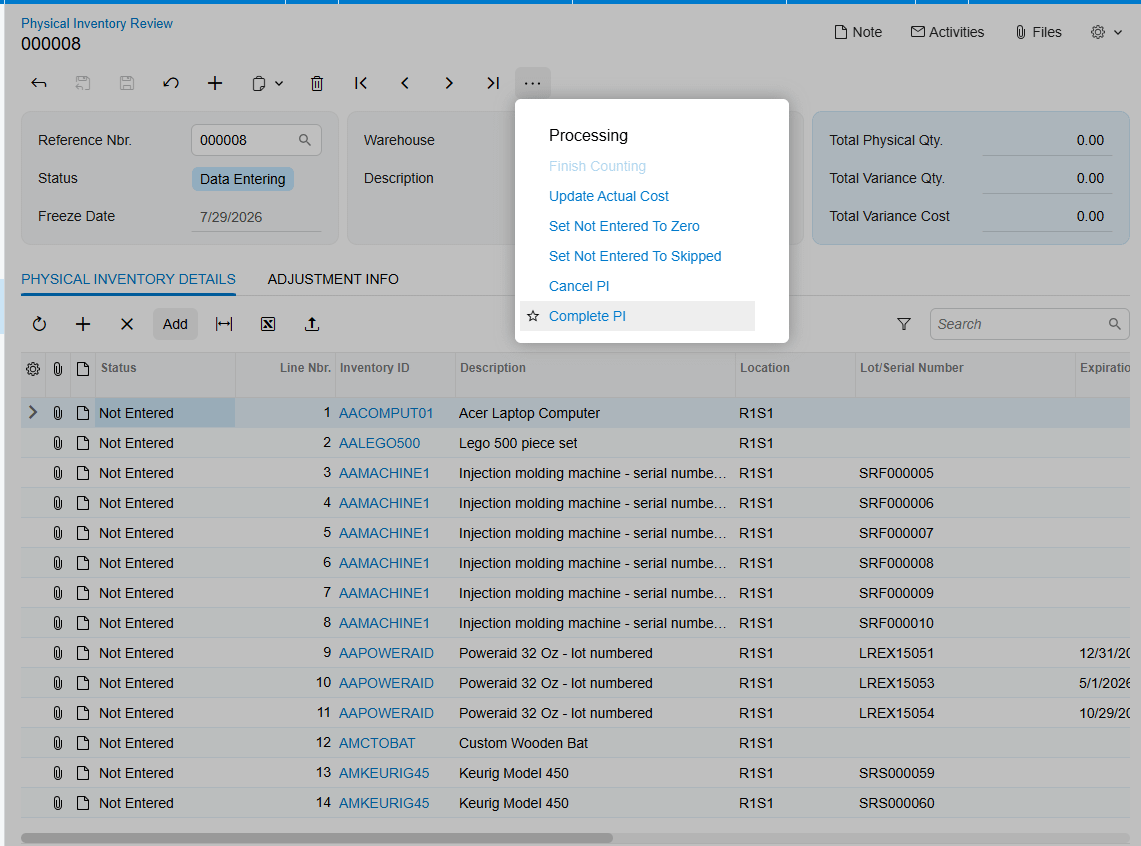
Where to Monitor Consignment Inventory in Acumatica
1. Sales Order Preferences: Consignment Order Type, Consignment Invoice Order Type, Consignment Return Order Type, and default Consignment Warehouse.
2. Warehouses IN204000: Use for Consignment and the distinction between destination and source warehouses.
3. Customer setup: the customer-specific consignment warehouse that overrides the system default.
4. Consignment order: ordered quantities, shipped quantities, Cons. Sold Qty., Open Qty., and Open, Consignment, Partial Consignment, or Closed status.
5. Transfer-type purchase receipt: source, destination, quantity, and released status after Update IN.
6. Consignment Invoice and Return Orders: selected warehouse, item quantities, document status, and release result.
7. Consignment Orders generic inquiry: order-level history, including closed orders.
8. Consignment Item Details generic inquiry: active item-level consignment balances; closed orders are no longer displayed here.
9. Physical Inventory Review: Book Qty., Physical Qty., generated invoice, and resulting Open Qty.
Consignment Inventory Tracking in Acumatica Frequently Asked Questions
Why is the wrong consignment warehouse appearing on an order
A warehouse assigned to the customer overrides the default Consignment Warehouse in Sales Order Preferences. Review the customer assignment first, then verify that the warehouse has Use for Consignment selected.
Why are Consignment Sell Items and Consignment Return Items disabled
Those actions become available after Update IN when the order reaches Consignment or Partial Consignment status. Confirm the shipment, run Update IN, and verify the resulting transfer-type purchase receipt.
How is Book Qty calculated for a consignment physical count
Book Qty is the sum of Open Qty from the Item Selection windows of related consignment orders for the selected customer and warehouse.
When does a consignment order close
The order closes after all ordered items have shipped and every shipped item has been sold or returned. The sell and return actions are then disabled.
Improve Consignment Inventory Visibility with Biz-Tech Services
Accurate consignment inventory depends on consistent customer warehouse assignments, timely Update IN processing, released sell and return documents, and regular comparison of Book Qty with Physical Qty. Biz-Tech Services Consignment Processing brings those controls into Acumatica.
To learn more about tracking inventory at customer locations with Acumatica Consignment Processing, visit https://biz-techservices.com
How to Manage Kit Component Inventory in Acumatica
How to Manage Kit Component Inventory in Acumatica
Managing kit component inventory in Acumatica starts with the kit specification, then continues through component quantities, warehouse selection, availability checks, allocation, purchasing, assembly, shipment, and receipt reconciliation. The Biz-Tech Services Kit Processing product for Acumatica exposes those component-level controls from the order workflow so users can see and adjust the inventory records that actually fulfill a kit.
This guide concentrates on inventory, warehouse, and quantity handling. It complements the configuration overview in Kit Processing Configuration Checklist for Acumatica, the lifecycle described in How Kit Processing Works in Acumatica from Order Entry to Fulfillment, and the order-entry procedure in How to Create Sales Orders with Kit Items in Acumatica.
What Kit Component Inventory Means in Acumatica
A kit is defined by a specification and revision. The specification can contain stock components, non-stock components, option components, substitute items, and even child kits. When a kit explodes, Acumatica replaces the kit line with a non-stock placeholder and adds its components to the document. Inventory control therefore depends on the component lines, while the placeholder preserves the kit-level commercial line without representing physical inventory.
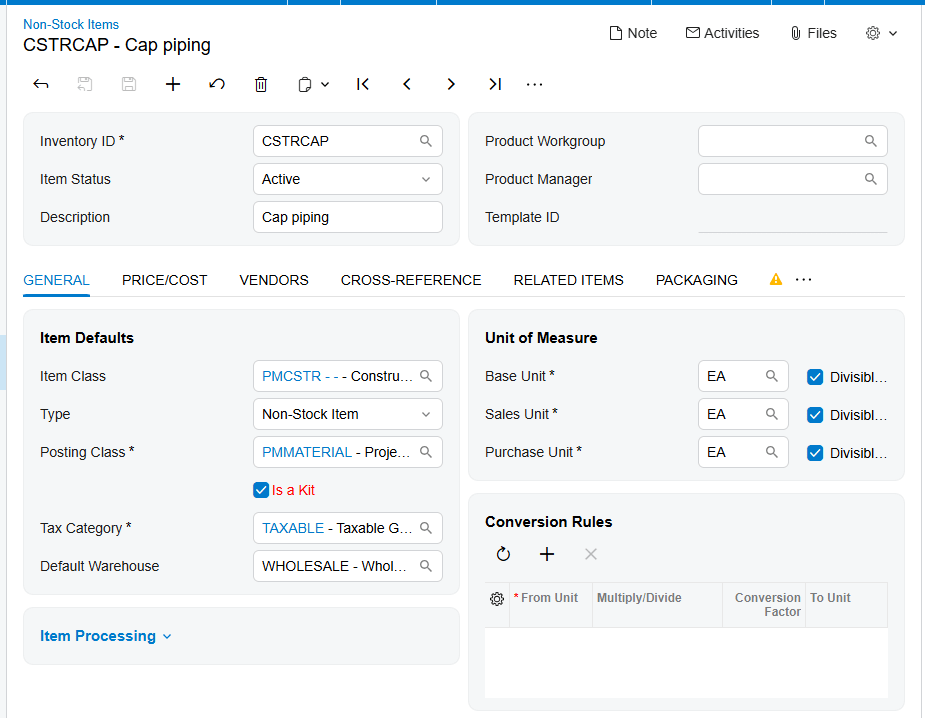
The Kit Assembly feature must be enabled on Enable/Disable Features (CS100000) to use kit specifications and assembly documents. A kit specification can be created only for an item marked as a kit on Stock Items (IN202500) or Non-Stock Items (IN202000). The active specification, its Revision ID, and Current Revision setting determine which component definition is available for processing.
Kit Component Inventory at a Glance
Use this sequence to keep component demand and inventory evidence aligned:
1. Confirm that the kit specification is active and that the intended revision is current.
2. Review the stock, non-stock, option, nested-kit, and substitute components that can appear for the kit.
3. Set the kit quantity or use Load Components to explode the kit into the placeholder and component lines.
4. Open Component Details to review or change each component Quantity and Warehouse.
5. Compare Qty. Available, Qty. Avail for Shipping, and Qty. on Hand before committing shipment quantities.
6. Choose the shipping rule that matches whether partial component availability is acceptable.
7. Create a purchase order for a component when required quantity must be replenished, or generate a kit assembly for an eligible stock kit.
8. Reconcile the component lines against shipments, purchase receipts, inventory receipts, assembly links, and invoices.
Establish the Quantity Basis Before You Allocate Components
The kit quantity drives component demand when the kit explodes. The documentation also identifies a Sales Orders Preferences setting called Not Calculate Component Quantities. When enabled, quantity calculation in Sales Orders is based on the quantity specified for the kit itself. Because the manual does not provide a numeric formula or worked example for this setting, test it with a representative kit revision before relying on it in production.
After explosion, the Component Details window remains the operational place to adjust Quantity and Warehouse. If Allow Edit Exploded Kit Component is selected in the Biz-Tech Kit Processing Settings section of Sales Orders Preferences, users can manually edit component quantities and delete component lines on Sales Orders. The same setting in Purchase Orders Preferences allows quantity control and deletion on Purchase Orders.
Quantity also affects purchasing. To create a purchase order from Component Details, select Mark for PO for the component and click Create PO. The required quantity must have a value. The purchase order uses the component Default Vendor ID, and components with the same vendor are grouped into one purchase order.
Use Component Availability to See Stock Before Shipping
Sales Orders Preferences controls which inventory facts appear in Component Details. Show Qty. Available exposes available quantity, Show Qty. Avail for Shipping exposes quantity available for shipment, and Show Qty. on Hand exposes physical quantity on hand. These values answer different questions, so users should not treat them as interchangeable.
The Component Availability settings can also show information about the next receipt. Show Information About Next Receive can be supplemented with Show Next Receive Type and Show Next Receive Ref. Number. The calculation may include receipt documents, transfer documents, open purchase orders, purchase order receipts, and purchase order transfers through the Inc. In Receipt, Inc. In Transfer, Inc. PO, Inc. PO Receipt, and Inc. PO Transfer options.
These indicators provide the documented stock-visibility layer for Kit Processing. The source does not define the underlying Acumatica availability calculation, its time horizon, or site-level inclusion rules, so use the displayed values as operational evidence and validate unexplained differences through the referenced receipt, transfer, or purchase document.
Map Warehouses at the Component Level
A kit can represent several physical items, and those items may need warehouse decisions of their own. After kit explosion, users can change the Warehouse for components in Component Details. This makes the component row the correct level for confirming where fulfillment inventory will come from.
Warehouse selection also appears in kit assembly. On the Kit Assembly screen, select the Inventory ID, specification revision, warehouse, and desired quantity. The assembly document includes required stock components with quantities and costs calculated from the selected revision, and users can add or remove components before releasing the assembly.
The documentation does not describe an automatic warehouse-mapping hierarchy, split-warehouse rules, or transfer creation when a component is unavailable at the selected warehouse. Treat warehouse mapping as a controlled user decision and verify each component line before shipment or assembly release.
Control Allocation and Partial Shipment Behavior
Components Qty. Is Required for Kit Item Ship determines how component availability constrains shipment. Its Ship Available Qty. option allows the kit or placeholder line to permit back orders and creates a shipment for the minimum component quantity without requiring every component needed for the full kit quantity.
Ship Ordered Qty. requires all components to be allocated and available based on the kit quantity; nothing ships until that condition is met. The third documented option sets the line to allow back orders without requiring component quantity to be available for shipping. The manual does not give a name for that third option.
If a component has zero quantity, the kit is not set to allow back orders, and the component-quantity requirement is selected, Acumatica displays an error. The source does not reproduce the exact message. For a non-stock kit that contains a stock option item, set Explode Option to Automatically so the stock option can be allocated during shipment.
Replenish or Assemble When Components Are Short
A component shortage can lead to purchasing or assembly, depending on the kit and the intended workflow. From Sales Orders, Mark for PO and Create PO produce a component purchase order. If the purchase order or its lines are deleted, the PO number is removed from Component Details. That link is useful when reconciling replenishment to the original kit demand.
When purchasing a kit item on a Purchase Order, the kit can be exploded by Load Components or by assigning a quantity. After its components are received, releasing the purchase receipt automatically generates an inventory receipt. Reconcile the received component quantities and the resulting inventory receipt before treating the stock as replenished.
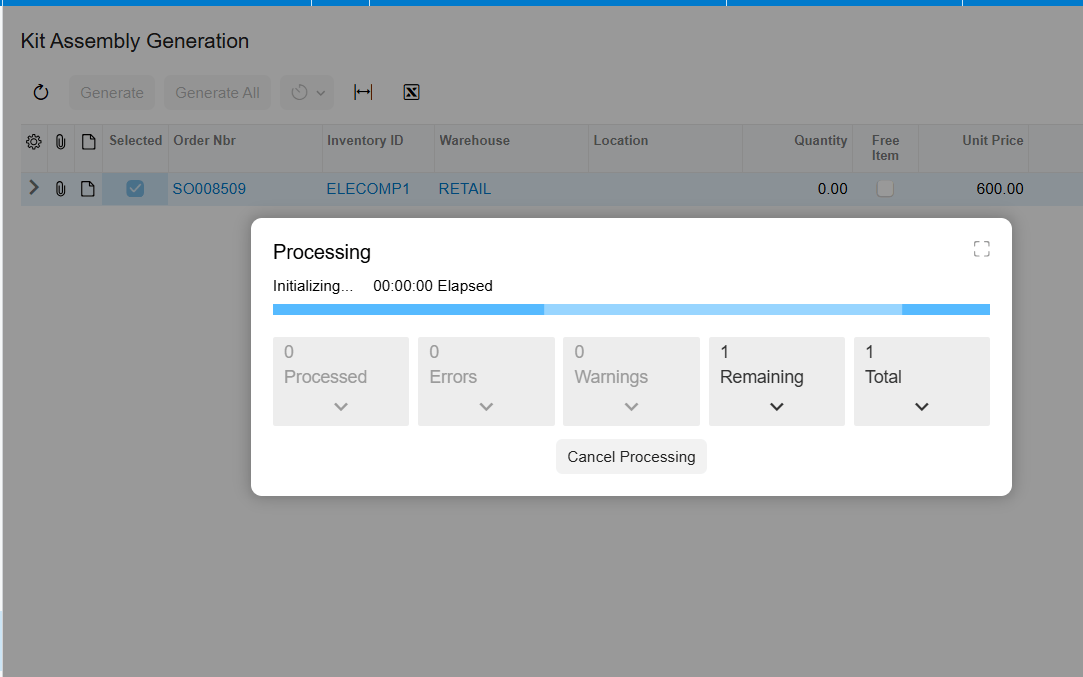
For an eligible stock kit, assembly can be created directly on the Kit Assembly screen or generated from Sales Orders before explosion when Allow Kit Assembly Generation is enabled. On Sales Orders, select Mark for Kit Assembly and run Generate Kit Assembly. The resulting link appears in the Kit Assembly field, and the assembly Orders tab shows the linked sales order. Mark for assembly is disabled for non-stock kits.
Reconcile Components, Costs, and Fulfillment Documents
After explosion, compare the placeholder and component lines with the specification revision. Confirm that component quantities and warehouses match the intended fulfillment plan, and use the availability fields to explain what can ship now and what depends on the next receipt.
The placeholder displays Total Cost of Components, calculated from each component Unit Cost at the time the Sales Order is created multiplied by Quantity. The documentation says that unit cost remains unchanged and that the total carries to the invoice. This creates a stable comparison point for order-to-invoice review, even when the operational component quantities are edited.
For partial shipments with Use Kit Default Price, the first shipment invoice receives the total kit price and the remaining items are invoiced at zero. When Invoice After Full Shipment is enabled, partial shipment is allowed but the placeholder is invoiced only after all components ship. Review the chosen preference before treating a zero amount or delayed placeholder invoice as a discrepancy.
Where to Monitor Kit Component Inventory in Acumatica
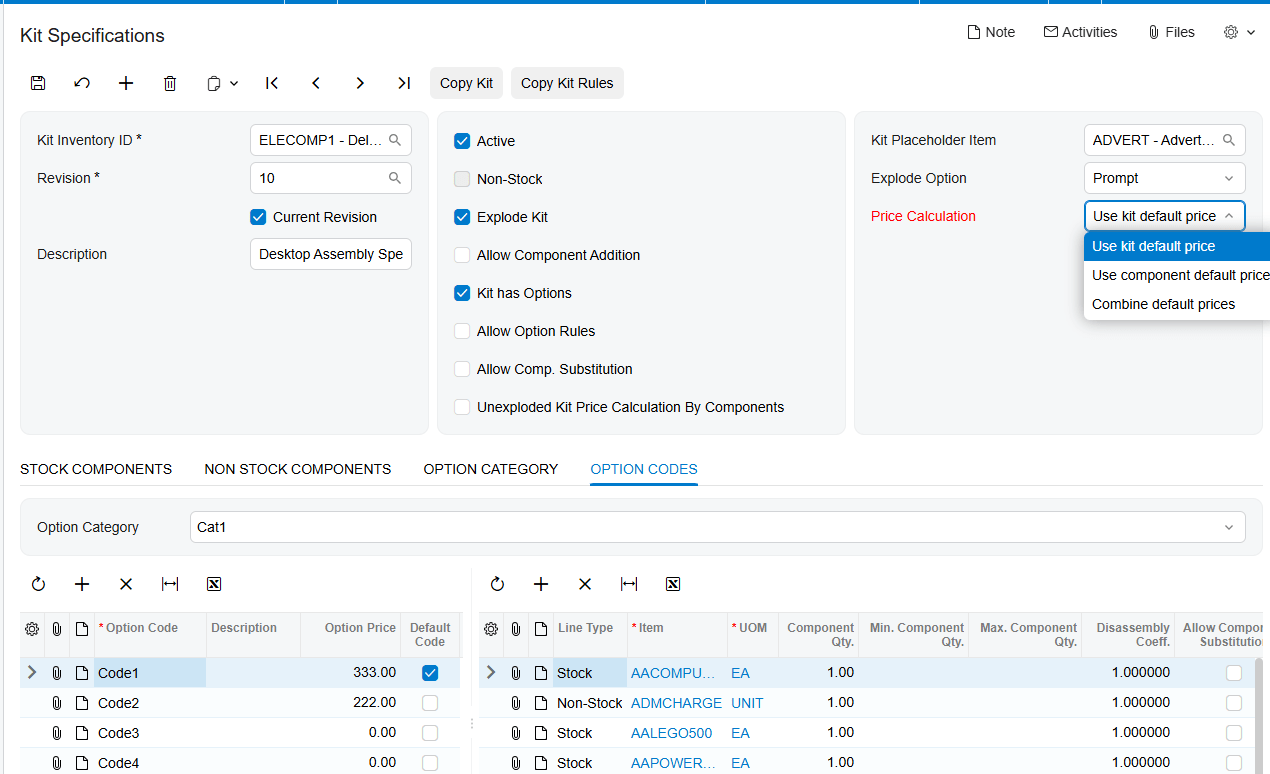
1. Kit Specifications: Kit Inventory ID, Revision ID, Current Revision, Active, stock components, non-stock components, option codes, and substitutions.
2. Stock Items (IN202500) and Non-Stock Items (IN202000): confirm that the inventory record is marked as a kit.
3. Sales Orders Preferences: Not Calculate Component Quantities and the Component Availability display settings.
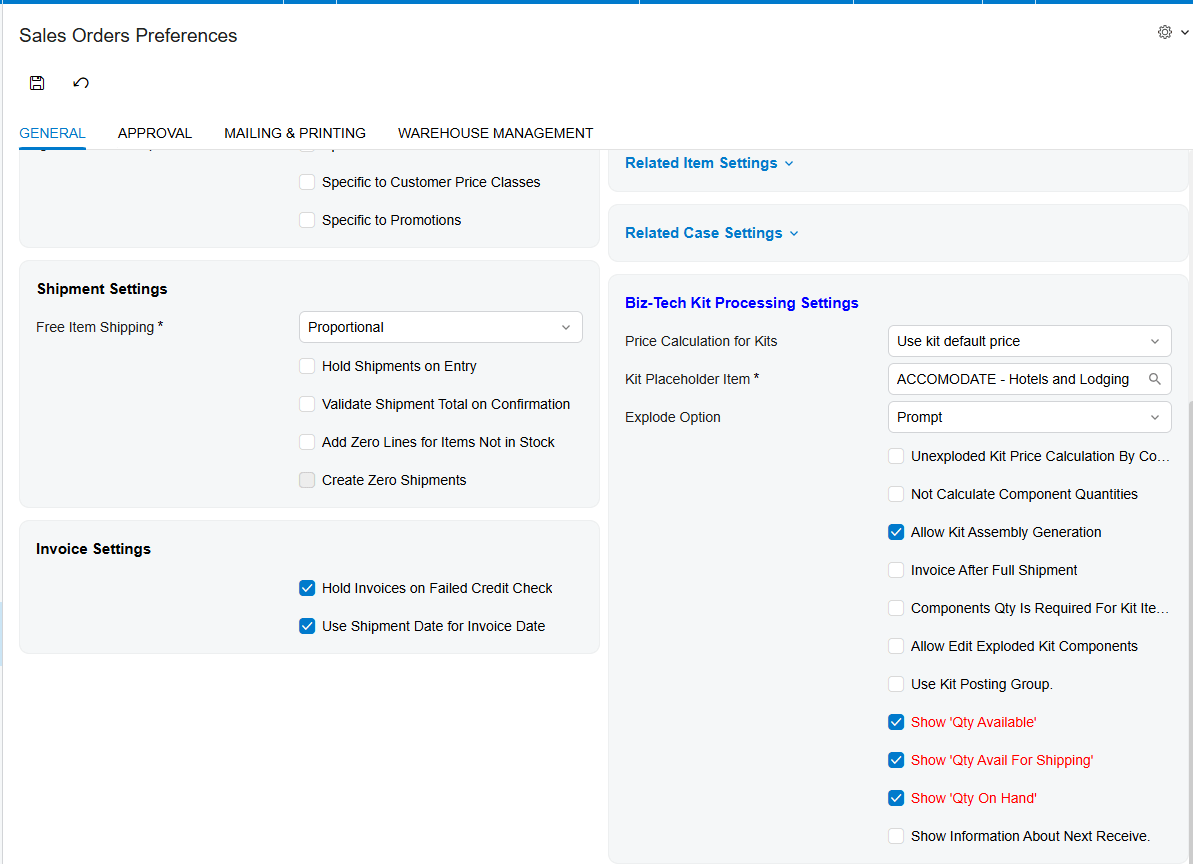
4. Sales Orders Preferences: Components Qty. Is Required for Kit Item Ship and its shipping option.
5. Component Details: component Quantity, Warehouse, Qty. Available, Qty. Avail for Shipping, and Qty. on Hand.
6. Component Details: next receive type, reference number, date, and quantity when those fields are enabled.
7. Component Details: Mark for PO and the resulting PO number for replenishment traceability.
8. Sales Orders Details: Kit Assembly link after Generate Kit Assembly runs.
9. Kit Assembly: Inventory ID, revision, warehouse, desired quantity, stock component quantities, costs, and linked order.
10. Purchase Receipt and automatically generated inventory receipt: confirm received component quantities reached inventory.
11. Shipment and invoice: compare shipped component quantities, placeholder timing, and Total Cost of Components.
Kit Component Inventory in Acumatica: Frequently Asked Questions
Which quantity should I check before shipping a kit?
Review Qty. Avail for Shipping for shipment readiness, while retaining Qty. Available and Qty. on Hand for context. The selected shipping option then decides whether partial quantities are acceptable or all ordered component quantities must be allocated.
Can I change a component warehouse after the kit explodes?
Yes. The documentation states that after explosion users can change Quantity and Warehouse in Component Details. Confirm the availability values again after changing the warehouse.
Why will Acumatica not ship the kit when one component is short?
Ship Ordered Qty. requires all components to be allocated and available for the kit quantity. If the business permits partial fulfillment, review Ship Available Qty. and the back-order settings.
Why does a zero-quantity component cause an error?
The source says an error appears when Components Qty. Is Required for Kit Item Ship is selected, a component has zero quantity, and the kit is not set to allow back orders. It does not provide the exact error text.
How can I see when a missing component is expected?
Enable the next-receive information in Sales Orders Preferences, including type and reference number as needed. Configure which receipt, transfer, purchase order, purchase receipt, and purchase transfer documents contribute to that view.
Can I edit component quantities after explosion?
Yes, when Allow Edit Exploded Kit Component is enabled for the applicable Sales Order or Purchase Order workflow. The setting also permits deletion of exploded component lines.
How do I replenish a component directly from the kit order?
Before explosion, select Mark for PO for the component in Component Details and click Create PO. A required quantity and the component Default Vendor ID are needed for the documented process.
How do I reconcile an assembled kit to its sales order?
Open the link in the Kit Assembly field on the Sales Order Details tab. On the Kit Assembly screen, the Orders tab displays the linked sales order number.
Work With the Biz-Tech Services Kit Processing Product
Reliable kit fulfillment depends on seeing component inventory at the point where quantities, warehouses, allocation rules, receipts, and shipment documents meet. Biz-Tech Services can help configure and test the Kit Processing controls that make those decisions visible in Acumatica.
If your team needs help aligning kit specifications, component availability, warehouse choices, replenishment, and fulfillment controls, visit https://biz-techservices.com to learn more about Biz-Tech Services and Kit Processing for Acumatica. Watch the https://www.youtube.com/watch?v=sP89DBTxCJU video for more details and subcribe to Youtube channel.

Acumatica Manufacturing ERP 2026: Complete Guide to MRP, Production, BOM, Scheduling & Shop Floor

Acumatica Manufacturing ERP 2026: The Complete Guide to Production, MRP, Scheduling, Shop Floor Management, and Manufacturing Automation
Manufacturing ERP is no longer just an accounting system with a production module attached. Modern manufacturers need one connected platform that can coordinate customer demand, engineering, materials, purchasing, production, capacity, labor, inventory, warehouses, costing, fulfillment, finance, and reporting in real time.
That is exactly where Acumatica Manufacturing ERP becomes interesting.
Acumatica Manufacturing Edition combines manufacturing functionality with Acumatica Cloud ERP’s financial management, distribution, inventory, purchasing, order management, CRM, warehouse management, project accounting, reporting, automation, mobile access, APIs, and integration framework.
The result is not simply software for creating production orders.
It is an ERP environment designed to connect the entire manufacturing lifecycle.
A sales order can create demand.
Demand can influence Material Requirements Planning (MRP).
MRP can identify material shortages and supply requirements.
Production planning can evaluate inventory, purchase orders, transfers, forecasts, and production requirements.
Advanced Planning and Scheduling (APS) can evaluate finite capacity across work centers, machines, and production resources.
Shop-floor employees can capture labor, production quantities, material usage, and scrap.
Those transactions can update production progress, inventory, work in process, manufacturing cost, and eventually the general ledger.
Management can compare planned costs to actual costs.
Purchasing can see material requirements.
Sales can see inventory and production information.
Finance can see the financial effect of manufacturing activity.
The real value of Acumatica Manufacturing Edition is not one manufacturing feature. It is the connection between demand, engineering, production, inventory, supply chain, costing, sales, and finance.
This matters because manufacturing companies rarely operate only as manufacturers.
A modern manufacturer may also be:
- a distributor;
- an eCommerce seller;
- a field service company;
- a project-based engineering business;
- a wholesale supplier;
- a retailer;
- an Amazon seller;
- a B2B portal operator;
- a multi-company organization.
ERP must support this convergence.
Acumatica Manufacturing Edition is particularly notable because it supports multiple manufacturing models, including make-to-stock, make-to-order, assemble-to-order, configure-to-order, engineer-to-order, job shop, repetitive manufacturing, batch process manufacturing, project-driven manufacturing, and mixed-mode manufacturing.
Acumatica 2026 R1 also expands the manufacturing platform with a new Shop Floor Kiosk, more precise production timing, and improved planning with in-transit inventory visibility.
As an Acumatica Gold Partner, BizTech helps companies implement, integrate, customize, automate, migrate, report on, and support Acumatica environments.
For manufacturers, that work can include:
- BOM and routing setup;
- production order configuration;
- MRP;
- work centers;
- shop-floor processes;
- inventory migration;
- warehouse integration;
- eCommerce integration;
- EDI;
- custom workflows;
- reporting;
- API integrations;
- post-go-live optimization.
This guide is designed to be a complete introduction to Acumatica Manufacturing ERP in 2026—from the first customer demand signal to finished goods, shipment, cost analysis, and executive reporting.
What Is Acumatica Manufacturing Edition?
Acumatica Manufacturing Edition is a cloud ERP solution designed to connect production management with financial management, inventory, distribution, purchasing, sales, customer management, warehouse operations, reporting, projects, and external business systems.
It supports manufacturers with relatively simple production flows as well as organizations with more advanced requirements.
Typical Acumatica Manufacturing ERP users may include:
- industrial equipment manufacturers;
- electronics manufacturers;
- metal fabrication businesses;
- furniture manufacturers;
- consumer product companies;
- food and batch manufacturers;
- textile manufacturers;
- job shops;
- custom product manufacturers;
- engineer-to-order businesses;
- project-centric manufacturers;
- mixed-mode manufacturers.
The platform can combine:
- Bill of Materials and Routing;
- Production Management;
- Material Requirements Planning;
- Master Production Scheduling;
- Advanced Planning and Scheduling;
- Engineering Change Control;
- Product Configurator;
- Estimating;
- Shop Floor Kiosk;
- Manufacturing Data Collection;
- Inventory Management;
- Warehouse Management;
- Purchasing;
- Order Management;
- Project Accounting;
- CRM;
- Financial Management;
- dashboards and reporting;
- API integrations.
This breadth is important because production does not exist in isolation.
A production schedule is only useful when it reflects customer demand, available materials, purchase orders, warehouse stock, machine capacity, labor, and delivery commitments.
What’s New for Manufacturing in Acumatica 2026 R1?
Acumatica 2026 R1 introduces several manufacturing improvements focused on production visibility, data accuracy, and planning.
New Shop Floor Kiosk
The Acumatica Shop Floor Kiosk provides a simplified interface specifically designed for production employees.
Workers can record:
- labor;
- production quantities;
- materials;
- scrap;
- production activity and progress.
The objective is to reduce the amount of complex ERP navigation required on the factory floor.
Instead of waiting until the end of a shift for a supervisor to enter production information, transactions can be captured much closer to when the work actually happens.
Seconds-Level Production Time Tracking
Acumatica 2026 R1 improves production-time precision by supporting seconds-level tracking.
This can be especially useful for:
- high-speed manufacturing;
- repetitive manufacturing;
- short-cycle operations;
- environments where minute-level rounding materially affects labor costing.
More precise time data can improve both production analysis and cost calculation.
In-Transit Inventory in MRP and DRP
Acumatica 2026 R1 improves planning by allowing MRP and DRP to consider inventory already moving between locations.
This matters in multi-site manufacturing.
If materials are already in transit from Warehouse A to Plant B, planning should not automatically create another supply recommendation as though that inventory did not exist.
Considering in-transit inventory can help reduce:
- duplicate transfers;
- unnecessary purchasing;
- excess inventory;
- poor multi-site recommendations.
Core and Optional Acumatica Manufacturing Capabilities
It is important not to assume that every manufacturing capability is included automatically in every Acumatica license.
Acumatica’s current product-edition structure distinguishes between core Manufacturing Edition functionality and additional manufacturing capabilities that may be optional depending on licensing and edition.
| Capability | Role in Manufacturing | Typical Availability |
|---|---|---|
| Bill of Materials & Routing | Defines operations, materials, work centers, tools, machines and production structure | Core Manufacturing Edition capability |
| Production Management | Production orders, execution, labor, material and production transactions | Core Manufacturing Edition capability |
| Material Requirements Planning | Time-phased supply and demand planning | Core Manufacturing functionality; exact edition availability should be confirmed |
| Product Configurator | Rules-based configuration of custom products | Optional capability |
| Estimating | Manufacturing estimates for labor, material, machines, tools and overhead | Optional capability |
| Advanced Planning & Scheduling | Finite capacity planning and resource scheduling | Optional capability |
| Engineering Change Control | ECR/ECO and controlled BOM/routing revisions | Optional capability |
| Shop Floor Kiosk | Simplified factory-floor production reporting | Optional capability |
| Manufacturing Data Collection | Barcode/mobile shop-floor data capture | Optional capability |
| Arena Connector | PLM connectivity | Optional integration |
Exact licensing, product level, and feature availability can change. Manufacturing scope should be confirmed with the Acumatica partner during discovery.
From Sales Demand to Finished Goods: How Acumatica Manufacturing Works
The easiest way to understand Acumatica Manufacturing ERP is to follow information through the business.
1. Demand Enters the System
Demand can come from:
- sales orders;
- forecasts;
- master production schedules;
- internal replenishment;
- project requirements;
- other planning signals.
2. MRP Evaluates Supply and Demand
MRP evaluates materials against:
- on-hand inventory;
- open sales demand;
- forecasts;
- purchase orders;
- transfer orders;
- production supply;
- in-transit inventory;
- planning parameters.
3. Supply Requirements Are Identified
The system can identify whether supply should come from:
- purchasing;
- production;
- inventory transfer;
- existing stock.
4. Production Orders Drive Manufacturing Execution
A production order references the required:
- finished item;
- quantity;
- BOM;
- routing;
- operations;
- materials;
- labor;
- tools;
- machines;
- overhead.
5. Scheduling Determines When Work Can Happen
APS can consider finite resource constraints and help determine realistic production schedules.
6. Shop-Floor Transactions Capture Reality
Employees report:
- work performed;
- labor time;
- quantities produced;
- materials consumed;
- scrap;
- operation progress.
7. Costs and Inventory Update
Manufacturing transactions contribute to actual production costs and inventory movements.
8. Finished Goods Become Available for Fulfillment
Production activity ultimately connects back to sales orders, warehouses, shipment, invoicing, and financial reporting.
Manufacturing Models Supported by Acumatica
One of Acumatica’s strongest manufacturing characteristics is its support for multiple production methodologies.
Produce finished goods based on forecasts and expected demand before customer orders are received.
Production begins in response to a specific customer demand or order.
Stock components and assemble finished products after customer demand is known.
Create product configurations from predefined options and business rules.
Engineer products around customer-specific requirements before or during production.
Manage lower-volume, variable production with job-specific routing, estimating and costing.
Manage formula or batch-oriented production processes and scalable quantities.
Support recurring production where the same or similar products are produced repeatedly.
Connect manufacturing activity with projects, tasks, costs and customer billing.
Combine several manufacturing approaches inside the same company.
Why Mixed-Mode Support Matters
Real companies rarely fit into only one manufacturing category.
A manufacturer may:
- make standard products to stock;
- configure premium products to order;
- engineer special projects;
- perform light assembly;
- run batch production for another product family.
Using a common ERP platform across those processes can reduce duplicate data and disconnected systems.
Acumatica Bills of Material and Routing
The Acumatica Bill of Materials is one of the foundations of Manufacturing Edition.
A BOM defines far more than a list of components.
It can define:
- operations;
- work centers;
- materials;
- production steps;
- labor expectations;
- overhead;
- tools;
- machines;
- routing information.
BOM and Routing Maintenance
A controlled BOM helps answer critical production questions:
- What must be produced?
- Which materials are required?
- In what quantities?
- Which operations must occur?
- Which work centers perform the work?
- How long should each operation take?
- Which machines are required?
- Which tools are required?
- What costs should be expected?
Indented and Multi-Level BOMs
Manufacturers with subassemblies can represent multi-level product structures rather than maintaining disconnected spreadsheets.
Routing
The routing describes the production path.
Typical routing elements can include:
- setup time;
- run time;
- work center;
- labor requirements;
- machine requirements;
- operation sequence;
- outside processing.
Acumatica Planning BOMs
A Planning BOM is particularly valuable when the exact final product configuration is not yet known.
This is common in:
- configure-to-order;
- assemble-to-order;
- product families;
- forecast-driven environments.
A planning bill can represent likely component demand before the final configuration is selected.
This allows MRP and forecasting to plan materials earlier.
Example
Suppose a manufacturer sells industrial cabinets with ten possible configurations.
The exact combination of:
- door style;
- electrical panel;
- color;
- cooling system;
- mounting configuration
may not be known until the customer places the order.
Planning BOMs can help the company forecast common raw materials even though the final configuration is unknown.
Work Centers, Machines, Tools, and Manufacturing Resources
Manufacturing planning requires more than material availability.
A company may have enough steel, plastic, electronics, or packaging to build a product but still be unable to deliver on time because the required machine is fully scheduled.
Acumatica can model:
- work centers;
- machines;
- tools;
- labor;
- capacity;
- production calendars.
Work Centers
Work centers can represent manufacturing areas such as:
- cutting;
- welding;
- assembly;
- painting;
- packaging;
- quality inspection.
Machines
Machine availability can influence:
- production scheduling;
- capacity;
- production cost;
- delivery commitments.
Tools
Tools can also be associated with production operations and included in production costing.
Acumatica Production Management
Acumatica Production Management connects the planned manufacturing structure with actual execution.
Production Orders
A production order contains the information required to manufacture a specific quantity.
It can connect:
- finished goods;
- materials;
- operations;
- routing;
- work centers;
- labor;
- machines;
- tools;
- costing.
Material Allocation
Acumatica can evaluate availability and allocation of materials for production-related documents.
Production Progress
As work is performed, transactions can update:
- quantities completed;
- operation progress;
- materials issued;
- labor consumed;
- scrap;
- production cost.
Acumatica Material Requirements Planning (MRP)
Material Requirements Planning is one of the most important capabilities in any manufacturing ERP.
Without reliable MRP, purchasing and production teams often operate from spreadsheets, intuition, or safety stock that is intentionally inflated because nobody trusts the planning system.
What MRP Does
MRP analyzes demand and supply to determine future inventory requirements.
Demand may include:
- sales orders;
- forecasts;
- production requirements;
- transfer demand;
- planning requirements.
Supply may include:
- on-hand inventory;
- purchase orders;
- production supply;
- transfer orders;
- in-transit stock.
Why MRP Matters
Effective MRP can help reduce:
- material shortages;
- emergency purchasing;
- excess inventory;
- duplicate replenishment;
- production delays;
- manual planning.
2026 R1 and In-Transit Inventory
The 2026 R1 enhancement is particularly useful for companies operating multiple locations.
Inventory already dispatched between warehouses can be recognized in planning, reducing the risk of generating unnecessary additional supply.
Master Production Schedule and Forecast-Based Planning
A Master Production Schedule helps translate higher-level production plans into time-phased manufacturing demand.
MPS is particularly useful where manufacturers need to plan:
- finished goods;
- product families;
- seasonal demand;
- forecast demand;
- longer-lead-time materials.
MPS and planning BOMs can work together when final configurations are not yet known.
Acumatica Advanced Planning and Scheduling (APS)
MRP answers an important question:
What materials do we need?
APS answers another:
When can we realistically produce the order with the resources we actually have?
Acumatica Advanced Planning and Scheduling supports:
- finite capacity scheduling;
- rough-cut capacity planning;
- work center scheduling;
- work center utilization;
- machine scheduling;
- machine utilization;
- tool scheduling and usage;
- visual production scheduling.
Finite Capacity Scheduling
Infinite capacity planning assumes the factory can produce unlimited work at the same time.
Real factories cannot.
Finite capacity planning considers resource limitations.
Production Schedule Board
The Production Schedule Board provides a graphical scheduling environment where production orders can be viewed over time.
Manufacturers can analyze:
- scheduled orders;
- unscheduled orders;
- work centers;
- machines;
- available capacity;
- scheduled capacity.
Acumatica Shop Floor Kiosk 2026
The Shop Floor Kiosk is one of the most important manufacturing additions in Acumatica 2026 R1.
It is designed to simplify ERP interaction for production workers.
Workers Can Record
- labor time;
- production quantities;
- materials;
- scrap;
- production activities;
- progress.
Why a Kiosk Matters
Manufacturing ERP often fails at the final ten meters.
The planning system may be excellent, but if shop-floor transactions are entered hours later from paper travelers, production data is already stale.
A dedicated kiosk can reduce that lag.
Push and Pull Workflows
The kiosk can support different ways of selecting work.
Workers may use:
- work in process;
- work centers;
- production orders;
- recent activity.
Multiple Kiosk Portals
Manufacturers with several plants or operational areas can deploy separate kiosk portals and associate them with appropriate branches.
Acumatica Manufacturing Data Collection
Manufacturing Data Collection supports shop-floor data capture using mobile and scanning workflows.
Typical scenarios include:
- barcode scanning;
- material movement;
- labor transactions;
- clock-in and clock-out;
- inventory updates;
- production transaction capture.
The general objective is the same as the Shop Floor Kiosk:
capture production data closer to the moment the work actually occurs.
Acumatica Manufacturing Costing
Manufacturing profitability cannot be understood from raw material cost alone.
A product may also consume:
- direct labor;
- indirect labor;
- machines;
- tools;
- overhead;
- outside processing.
Acumatica Manufacturing Edition can track planned and actual cost drivers.
Material Cost
Materials can include:
- raw materials;
- purchased components;
- subassemblies;
- non-stock manufacturing materials where applicable.
Labor Cost
Labor costs can represent both direct and indirect labor.
Machine Cost
Machine usage can contribute to product cost.
Tool Cost
Tools associated with operations can also be included in manufacturing costing.
Overhead
Acumatica supports both fixed and variable overhead concepts.
Planned vs Actual Cost
One of the most useful manufacturing analyses is the comparison of what production should have cost against what production actually cost.
This can help identify:
- material variance;
- labor variance;
- machine inefficiency;
- unexpected scrap;
- overhead issues;
- poor routing assumptions.
Acumatica Manufacturing Estimating
Manufacturers often need to understand cost before a production order exists.
Acumatica’s estimating functionality can use manufacturing master data to estimate:
- materials;
- labor;
- machines;
- tools;
- overhead.
This is especially valuable for:
- job shops;
- custom manufacturing;
- engineer-to-order;
- new product quotations.
Acumatica Engineering Change Control
Manufacturing master data changes.
Engineering revises components.
A customer requirement changes.
A supplier becomes unavailable.
A material becomes obsolete.
A routing changes because a new machine is installed.
Without controlled engineering change processes, these changes can create serious production risk.
Engineering Change Control helps manage revisions to bills of material and routings.
Engineering Change Request (ECR)
An ECR can initiate and document a proposed change.
Engineering Change Order (ECO)
An approved change can then move through a controlled change-order process.
Effectivity
Revision and effectivity control matters because changes can influence:
- material planning;
- costing;
- scheduling;
- production instructions;
- product compliance.
Acumatica Product Configurator
The Acumatica Product Configurator is a rules-based system for configuring custom products to order.
Instead of creating a separate item and BOM for every possible product combination, a manufacturer can define:
- features;
- options;
- attributes;
- rules;
- pricing;
- configuration logic.
Benefits
Product configuration can help:
- respond to customer inquiries faster;
- reduce configuration errors;
- enable sales teams without deep engineering knowledge;
- avoid creating thousands of unnecessary item/BOM combinations;
- calculate configuration-dependent pricing;
- connect configuration to production.
Where Configuration Can Be Used
Configured products can be relevant in:
- opportunities;
- sales orders;
- production;
- costing.
Outside Processing and Manufacturing Subcontractors
Many manufacturers outsource specific production operations.
Examples include:
- heat treatment;
- painting;
- coating;
- machining;
- plating;
- specialized assembly;
- packaging.
Acumatica Manufacturing Edition supports outside processing workflows.
The system can help track:
- subcontractor vendors;
- materials sent to subcontractors;
- purchase orders for subcontract services;
- warehouse or location movements;
- additional subcontract costs;
- production-order progress.
Manufacturing Inventory and Warehouse Management
Manufacturing ERP and inventory management cannot be separated.
Production depends on accurate raw material, component, subassembly, and finished-goods inventory.
Multi-Warehouse Inventory
Manufacturers can manage inventory across:
- raw material warehouses;
- production locations;
- finished goods warehouses;
- distribution centers;
- subcontractor inventory locations;
- multiple plants.
Lot and Serial Tracking
Lot and serial traceability can be important for:
- quality;
- warranty;
- regulatory requirements;
- recalls;
- customer service.
Warehouse Management
Acumatica WMS can extend manufacturing operations into:
- receiving;
- put-away;
- picking;
- packing;
- shipping;
- inventory movement;
- barcode scanning.
Purchasing and Supply Chain Management for Manufacturers
MRP is only useful if purchasing can act on the resulting supply requirements.
Manufacturing purchasing may involve:
- raw materials;
- components;
- subcontract services;
- packaging;
- tools;
- maintenance-related supplies.
ERP integration between planning and purchasing can help buyers understand:
- what is needed;
- when it is needed;
- what is already on order;
- what is in transit;
- where shortages may occur.
Manufacturing, Sales Orders, and eCommerce
Manufacturing demand increasingly comes from multiple channels.
A modern manufacturer may receive orders through:
- direct sales;
- B2B portals;
- Shopify;
- WooCommerce;
- Magento;
- Amazon;
- EDI;
- retail partners;
- distributors.
The ERP should connect this commercial activity to production and inventory.
Why This Matters
Without integration:
- production may not see demand quickly;
- inventory may be oversold;
- orders may require manual entry;
- customer delivery dates may be unreliable;
- channel profitability may be unclear.
Project-Driven and Engineer-to-Order Manufacturing
Some manufacturers cannot manage work only by SKU.
They manufacture around:
- customer projects;
- engineering milestones;
- installation;
- custom contracts;
- project billing;
- field service.
Acumatica’s manufacturing capabilities can operate alongside Project Accounting.
This can help connect:
- production;
- project tasks;
- project cost;
- purchasing;
- inventory;
- customer billing;
- financial reporting.
Multi-Site Manufacturing
Multi-site manufacturing creates additional planning complexity.
Materials may be available—but at the wrong plant.
Another warehouse may already be sending the stock.
A machine may be overloaded at one facility but available at another.
A multi-site ERP strategy should define:
- companies;
- branches;
- plants;
- warehouses;
- transfers;
- in-transit inventory;
- intercompany processes;
- site-specific shop-floor access.
The 2026 R1 in-transit planning enhancement and ability to deploy multiple Shop Floor Kiosk portals are particularly relevant here.
Acumatica Manufacturing Reporting and Dashboards
Manufacturing creates enormous amounts of operational data.
The challenge is converting it into actionable information.
Useful Manufacturing KPIs
Dashboards may include:
- production orders by status;
- late production orders;
- material shortages;
- work center utilization;
- machine utilization;
- planned vs actual labor;
- planned vs actual material;
- planned vs actual overhead;
- scrap;
- production variances;
- inventory turns;
- on-time delivery;
- WIP;
- purchase shortages;
- profitability by product;
- profitability by customer.
Generic Inquiries
Acumatica Generic Inquiries allow companies to build flexible operational views without treating every request as a software-development project.
Financial Reporting
Manufacturing activity ultimately affects:
- inventory assets;
- WIP;
- COGS;
- manufacturing variance;
- gross margin;
- cash flow.
Acumatica Manufacturing Integrations
No serious manufacturing ERP exists alone.
The manufacturing technology environment may include:
- CAD;
- PLM;
- quality management;
- MES;
- WMS;
- EDI;
- shipping;
- CRM;
- eCommerce;
- marketplaces;
- payment systems;
- BI;
- custom engineering software.
PLM and CAD
Engineering-driven companies may require product-definition synchronization between engineering tools and ERP.
Acumatica also provides an Arena connector option for PLM-related scenarios.
Quality Management
Manufacturers with formal quality programs may integrate specialist QMS platforms.
EDI
Manufacturers supplying large retailers or distributors may require:
- purchase orders;
- acknowledgements;
- advance shipping notices;
- invoices;
- inventory feeds.
BizTech Commerce and Marketplace Integrations
BizTech develops Acumatica solutions including:
- Amazon FBA/FBM Connector;
- Shopify Connector;
- WooCommerce Connector;
- Magento Connector;
- PayPal Integration;
- ShipHero;
- ShipStation;
- DSCO;
- CommerceHub;
- Salesforce;
- ServiceTitan;
- EDI;
- custom API integrations.
This matters for manufacturers that sell directly to consumers, distributors, retailers, marketplaces, and B2B customers simultaneously.
Real Manufacturing Results with Acumatica
Published Acumatica customer cases provide useful examples of how Manufacturing Edition is used in practice.
These are company-specific results and should not be treated as guarantees.
CoachComm
reduction in inventory carrying costs reported by the customer
manual spreadsheet work eliminated through MRP automation
connected environment for operational visibility
CoachComm uses Acumatica Manufacturing Edition with Inventory Control, MRP, CRM, and Field Service.
Portacool
faster month-end close
faster inventory count completion
manual data entry
Portacool uses Manufacturing Edition together with Warehouse Management, Inventory Management, Engineering Change Control, and Project Accounting.
Sheoga Hardwood Flooring
lower shop-floor inventory carrying costs
faster order entry
access to material availability
Triode
Triode uses:
- Product Configurator;
- Planning and Scheduling;
- Estimating;
- Engineering Change Control;
- Warehouse Management.
Its published case study reports 20% annual sales growth and a three-month implementation for that specific project.
AFF Group
AFF Group uses Manufacturing Edition with Inventory Management, Order Management, Warehouse Management, MRP, and Product Configurator.
The case study reports:
- millions saved in labor cost;
- production doubled with the same staff;
- significant reduction in paper processes.
Q-PAC
Q-PAC uses Manufacturing Edition with CRM, Inventory, Order Management, and MRP.
The published case reports:
- 30–40% annual growth;
- 45 minutes saved per order-status search;
- 5–10x production scalability.
How to Implement Acumatica Manufacturing ERP
Manufacturing implementation is more complex than implementing financial management alone.
The ERP partner needs to understand how information moves across:
- sales;
- engineering;
- planning;
- purchasing;
- inventory;
- production;
- warehouse;
- finance.
Phase 1: Manufacturing Discovery
Document:
- products;
- manufacturing models;
- BOM complexity;
- routing;
- work centers;
- machines;
- tools;
- material planning;
- production scheduling;
- shop-floor processes;
- costing;
- quality;
- warehouses;
- integrations.
Phase 2: Manufacturing Architecture
Design:
- companies;
- branches;
- warehouses;
- item classes;
- BOM structure;
- routing standards;
- production order types;
- work centers;
- planning settings;
- costing;
- security.
Phase 3: Master Data
Prepare and migrate:
- items;
- units of measure;
- BOMs;
- routing;
- work centers;
- machines;
- tools;
- vendors;
- customers.
Phase 4: Planning
Configure MRP and, where required:
- forecasting;
- MPS;
- planning BOMs;
- APS;
- inventory planning parameters.
Phase 5: Shop Floor
Configure:
- Shop Floor Kiosk;
- Manufacturing Data Collection;
- labor codes;
- employee access;
- scanning workflows;
- production reporting.
Phase 6: Costing
Validate:
- material cost;
- labor cost;
- machine cost;
- tool cost;
- overhead;
- planned vs actual reporting.
Phase 7: Integration
Connect required systems.
Phase 8: End-to-End Testing
Test complete scenarios:
- Create customer demand.
- Run planning.
- Create purchasing requirements.
- Create production.
- Issue materials.
- Record labor.
- Report production.
- Move finished inventory.
- Ship the customer order.
- Validate cost and financial posting.
Acumatica Manufacturing Data Migration
Manufacturing data migration is not simply an item import.
Items
Migrate:
- SKUs;
- descriptions;
- item classes;
- UOMs;
- costs;
- prices;
- vendors;
- lot/serial rules.
BOMs
Validate:
- components;
- quantities;
- subassemblies;
- operations;
- revision;
- effectivity.
Routing
Migrate:
- operations;
- work centers;
- setup time;
- run time;
- machines;
- tools;
- outside processing.
Open Production Orders
Open work is one of the hardest migration areas.
The team must determine:
- what has already been consumed;
- what has been completed;
- what remains in WIP;
- what cost has already been posted;
- whether production should be completed in the old system or transferred into Acumatica.
How Much Does Acumatica Manufacturing ERP Cost?
There is no single universal Acumatica Manufacturing price.
Software and implementation cost depend on:
- applications;
- resource consumption;
- deployment;
- manufacturing functionality;
- optional capabilities;
- companies;
- plants;
- warehouses;
- data migration;
- integrations;
- customization;
- training;
- support.
For a detailed breakdown of the overall Acumatica cost model, see BizTech’s guide:
Acumatica Implementation Cost 2026: Pricing, Timeline, Integrations, and Total Cost of Ownership.
How Long Does Acumatica Manufacturing Implementation Take?
There is no universal implementation duration.
A manufacturer with:
- one entity;
- one warehouse;
- simple BOMs;
- no custom integrations
will have a different project from a manufacturer with:
- five plants;
- several companies;
- thousands of BOMs;
- APS;
- Product Configurator;
- Shop Floor Kiosk;
- eCommerce;
- EDI;
- PLM;
- WMS;
- historical migration.
The implementation schedule should be based on scope, not on a generic promise.
Common Acumatica Manufacturing Implementation Mistakes
Mistake 1: Starting with Software Instead of the Manufacturing Process
The implementation team should first understand how the factory actually works.
Mistake 2: Migrating Bad BOMs
Incorrect component relationships cause planning, costing, and production errors.
Mistake 3: Ignoring Routing Quality
Bad routing data produces bad scheduling and bad cost estimates.
Mistake 4: Turning on MRP Before Cleaning Planning Parameters
MRP is only as reliable as:
- lead times;
- order quantities;
- safety stock;
- inventory accuracy;
- BOMs;
- open orders.
Mistake 5: Implementing APS Without Reliable Capacity Data
Finite capacity scheduling requires realistic:
- work center capacity;
- machine capacity;
- calendars;
- run times;
- setup times.
Mistake 6: Treating Shop-Floor Employees as an Afterthought
Production workers must participate in workflow design and testing.
Mistake 7: Over-Customizing Too Early
Use standard Acumatica functionality first.
Mistake 8: Ignoring Integrations Until the End
eCommerce, EDI, WMS, PLM, shipping, quality, and CRM affect ERP architecture.
Mistake 9: Testing Individual Screens Instead of Complete Manufacturing Scenarios
The full production lifecycle must be tested.
Mistake 10: No Post-Go-Live Optimization
Real manufacturing data often reveals opportunities that were invisible during implementation.
How to Measure Acumatica Manufacturing ERP ROI
Manufacturing ERP ROI should be measured with operational metrics.
Inventory
Track:
- inventory value;
- inventory turns;
- stockouts;
- excess inventory;
- carrying cost.
Production
Track:
- throughput;
- cycle time;
- production order lead time;
- schedule adherence;
- scrap;
- rework.
Labor
Track:
- direct labor efficiency;
- manual data entry;
- administrative time;
- production reporting delay.
Planning
Track:
- material shortages;
- expedited purchase orders;
- emergency transfers;
- planner hours;
- forecast accuracy.
Customer Performance
Track:
- on-time delivery;
- order lead time;
- delivery-date accuracy;
- customer service response time.
Financial Performance
Track:
- gross margin;
- manufacturing variance;
- COGS accuracy;
- month-end close;
- product profitability.
Why Work with BizTech for Acumatica Manufacturing Implementation?
Manufacturing implementation requires more than installing a manufacturing module.
The implementation partner must understand how production interacts with:
- financials;
- inventory;
- warehouses;
- purchasing;
- sales;
- eCommerce;
- integrations;
- reporting.
BizTech is an Acumatica Gold Partner providing implementation, integration, customization, data migration, workflow automation, reporting, testing, training, and ongoing support.
Implementation
BizTech can help configure:
- manufacturing master data;
- BOMs;
- production orders;
- materials;
- work centers;
- routing;
- inventory;
- warehouses;
- reporting.
Custom Development
Where standard functionality does not meet a real business requirement, BizTech can build:
- Acumatica customizations;
- custom APIs;
- specialized workflows;
- custom dashboards;
- integration services.
Integration
BizTech’s existing Acumatica solutions can connect manufacturing ERP with:
- Amazon;
- Shopify;
- WooCommerce;
- Magento;
- PayPal;
- ShipHero;
- ShipStation;
- Salesforce;
- ServiceTitan;
- DSCO;
- CommerceHub;
- EDI;
- custom systems.
Migration from Legacy ERP
BizTech also publishes detailed migration guidance for companies replacing:
This is particularly relevant for manufacturers whose production master data must be migrated from legacy ERP.
Acumatica Manufacturing Implementation Checklist
Business Model
- Manufacturing modes are documented.
- Products and product families are documented.
- Plants are documented.
- Warehouses are documented.
- Demand sources are documented.
Items and Inventory
- Item master is clean.
- UOMs are approved.
- Item classes are approved.
- Cost methods are approved.
- Lot and serial requirements are defined.
- Warehouses are configured.
- Opening inventory is reconciled.
BOM and Routing
- BOMs are validated.
- Subassemblies are validated.
- Routing is validated.
- Work centers are configured.
- Machines are configured.
- Tools are configured.
- Setup times are validated.
- Run times are validated.
Planning
- MRP settings are approved.
- Lead times are validated.
- Safety stock is validated.
- Order quantities are validated.
- Forecast process is defined.
- MPS requirements are defined.
- APS requirements are defined.
Shop Floor
- Employee access is configured.
- Shop Floor Kiosk requirements are defined.
- MDC requirements are defined.
- Labor codes are configured.
- Material reporting is tested.
- Scrap reporting is tested.
Costing
- Material costing is validated.
- Labor costing is validated.
- Machine costing is validated.
- Tool costing is validated.
- Overhead is validated.
- Planned vs actual reporting is tested.
Engineering
- Revision requirements are defined.
- ECR/ECO process is defined.
- PLM/CAD integration requirements are documented.
- Configurator requirements are documented.
Integrations
- Every integration has an owner.
- Authentication is configured.
- Cross-references are defined.
- Error handling is tested.
- Monitoring is enabled.
- Production-impacting integrations are included in UAT.
Go-Live
- Inventory is reconciled.
- Open sales orders are validated.
- Open purchase orders are validated.
- Open production orders have an approved migration strategy.
- Users are trained.
- Reports are approved.
- Dashboards are approved.
- Support coverage is active.
Final Conclusion: Why Acumatica Manufacturing ERP Matters in 2026
Manufacturing is becoming more connected, more data-driven, and less tolerant of delays between the shop floor and the ERP.
Manufacturers need to answer questions in real time:
- What should we produce?
- What material do we need?
- What material is already on the way?
- Which work center has capacity?
- Which machine is overloaded?
- Which production orders are late?
- What is our actual product cost?
- Where is inventory?
- Can we promise the customer this delivery date?
- Which products actually make money?
A disconnected collection of spreadsheets, accounting software, production tools, eCommerce platforms, and warehouse systems makes those questions difficult to answer.
Acumatica Manufacturing ERP is designed to bring those processes together.
It connects:
- demand;
- MRP;
- purchasing;
- BOMs;
- routing;
- production;
- scheduling;
- shop-floor reporting;
- inventory;
- warehouses;
- costing;
- sales;
- finance;
- reporting.
Acumatica 2026 R1 strengthens that model further with Shop Floor Kiosk, more precise production timing, and improved inventory planning.
For manufacturers, the result can be a more connected operating environment where information captured on the shop floor becomes useful to planners, buyers, warehouse employees, finance teams, salespeople, and executives.
But manufacturing ERP success depends on implementation quality.
BOMs must be accurate.
Routing must be realistic.
MRP parameters must be clean.
Inventory must be trusted.
Capacity data must reflect reality.
Shop-floor users must adopt the system.
Integrations must work reliably.
That is why the implementation partner matters.
BizTech combines Acumatica Gold Partner expertise with ERP implementation, custom development, data migration, automation, reporting, eCommerce, marketplace, warehouse, payment, and API integration capabilities.
For businesses searching for:
- Acumatica Manufacturing ERP;
- Acumatica Manufacturing Edition;
- Manufacturing ERP Software;
- Cloud ERP for Manufacturing;
- Acumatica MRP;
- Acumatica BOM;
- Acumatica Production Management;
- Acumatica APS;
- Acumatica Shop Floor Kiosk;
- Acumatica Manufacturing Costing;
- Acumatica Product Configurator;
- Acumatica Manufacturing Implementation Partner;
- BizTech Acumatica Manufacturing;
the next step is not simply buying Manufacturing Edition.
The next step is designing how Acumatica should operate inside the real factory.
Planning an Acumatica Manufacturing Implementation?
BizTech can assess your manufacturing processes, BOMs, routing, inventory, MRP, shop-floor requirements, integrations, migration scope, reporting, and Acumatica architecture before implementation begins.
FAQ: Acumatica Manufacturing ERP
What is Acumatica Manufacturing Edition?
Acumatica Manufacturing Edition is a cloud ERP solution that connects production management with financials, inventory, purchasing, sales, warehouses, MRP, manufacturing planning, costing, reporting, projects, CRM, and external integrations.
What types of manufacturing does Acumatica support?
Acumatica supports multiple manufacturing models including make-to-stock, make-to-order, assemble-to-order, configure-to-order, engineer-to-order, job shop, repetitive, batch process, project-driven, and mixed-mode manufacturing.
Does Acumatica have MRP?
Yes. Acumatica Manufacturing Edition includes Material Requirements Planning capabilities for analyzing demand, supply, inventory, purchase orders, production, transfers, forecasts, and related planning data.
What changed in Acumatica Manufacturing 2026 R1?
Important 2026 R1 manufacturing enhancements include the new Shop Floor Kiosk, seconds-level production time tracking, and improved MRP/DRP planning with in-transit inventory visibility.
What is the Acumatica Shop Floor Kiosk?
The Shop Floor Kiosk is a simplified manufacturing interface designed for shop-floor employees. It supports recording labor, production quantities, materials, scrap, and production progress without requiring workers to navigate the complete ERP interface.
Does Acumatica support BOMs and routing?
Yes. Bills of material and routing are core manufacturing capabilities. BOM structures can contain operations, work centers, materials, production steps, overhead, tools, and machines.
What is an Acumatica Planning BOM?
A Planning BOM is used for forecasting and MRP where the final product configuration is not yet known. It is particularly useful for product families and configure-to-order environments.
Does Acumatica support finite capacity scheduling?
Yes. Acumatica Advanced Planning and Scheduling supports finite capacity scheduling, rough-cut capacity planning, work center utilization, machine utilization, tool scheduling, and visual production scheduling.
Does Acumatica support manufacturing costing?
Yes. Manufacturing costing can include materials, direct and indirect labor, machines, tools, fixed and variable overhead, and other production-related costs. Planned and actual costs can be compared by production order and operation.
Does Acumatica have Engineering Change Control?
Yes. Engineering Change Control can manage ECR/ECO processes, BOM and routing revisions, approvals, and effectivity dates that influence production, planning, costing, and scheduling.
Does Acumatica have a Product Configurator?
Yes. Acumatica Product Configurator is a rules-based optional manufacturing capability for configuring custom products based on features, options, attributes, rules, pricing, and BOM logic.
Can Acumatica handle outside processing?
Yes. Acumatica Manufacturing Edition supports outside processing and can track subcontractors, materials, purchase orders, subcontract costs, inventory movements, and production progress.
Can Acumatica Manufacturing integrate with eCommerce?
Yes. Acumatica can be connected to eCommerce and marketplace systems. BizTech develops Acumatica integrations for Amazon, Shopify, WooCommerce, Magento, and other commerce platforms.
Can Acumatica integrate with PLM or CAD?
Yes. Engineering-oriented manufacturers can integrate Acumatica with PLM and CAD environments. Acumatica also offers an Arena connector option for PLM-related workflows.
Is Acumatica suitable for job shops?
Yes. Acumatica supports job-shop manufacturing and provides estimating, production costing, routing, work centers, MRP, scheduling, and related functionality that can support variable job-based production.
Is Acumatica suitable for make-to-order manufacturing?
Yes. Make-to-order is one of the manufacturing models supported by Acumatica Manufacturing Edition.
Is Acumatica suitable for engineer-to-order manufacturing?
Yes. Acumatica supports engineer-to-order scenarios and can combine manufacturing with Engineering Change Control, Product Configurator, estimating, project accounting, PLM integrations, purchasing, and production management.
Is Acumatica suitable for batch manufacturing?
Yes. Acumatica supports batch process manufacturing alongside discrete manufacturing approaches.
Can Acumatica support several manufacturing plants?
Yes. Acumatica can support multi-branch and multi-warehouse environments. Shop Floor Kiosk can also be deployed through multiple portals for different plants or production areas.
How much does Acumatica Manufacturing ERP cost?
There is no single universal price. Cost depends on required applications, resource usage, deployment, optional manufacturing capabilities, companies, sites, data migration, integrations, customization, training, and support.
How long does Acumatica Manufacturing implementation take?
Implementation time depends on manufacturing complexity, data quality, BOMs, routing, work centers, MRP, APS, integrations, shop-floor processes, migration scope, testing, and user availability. A discovery process is required for a reliable implementation timeline.
Can BizTech implement Acumatica Manufacturing Edition?
Yes. BizTech is an Acumatica Gold Partner providing implementation, data migration, customization, integrations, automation, reporting, testing, training, and ongoing Acumatica support.
Why choose BizTech for Acumatica Manufacturing implementation?
BizTech combines Acumatica ERP implementation with custom development and integration capabilities. This allows manufacturing projects to include not only core ERP configuration but also eCommerce, marketplaces, warehouses, payments, EDI, CRM, shipping, custom APIs, reporting, and specialized workflows.


How to Import ServiceTitan Invoices into Acumatica
How to Import ServiceTitan Invoices into Acumatica
Importing ServiceTitan invoices into Acumatica starts on the Import SO Invoices screen, where records are retrieved by updated date and selected status, then created in the Invoices and Memos screen. With the right store options in place, the same process can also bring in taxes, customers, addresses, terms, general ledger accounts, items, and payment information.
This guide focuses on the invoice task itself: the settings that control eligibility, the processing sequence, what happens when payment timing differs, and the places to validate the result. The Biz-Tech Services ServiceTitan Acumatica Connector supports this controlled path from a ServiceTitan invoice to the related Acumatica document.
Before You Start: What Must Be Configured
The Biz-Tech Services Acumatica ServiceTitan Connector depends on a correctly configured ServiceTitan Store. The source documentation calls this store the foundation of the integration and says that no data can be imported when it is not set up correctly. For a broader setup walkthrough, see the sibling article *How to Set Up ServiceTitan in Acumatica*.
1. Enter the credentials generated in ServiceTitan on the Connection Settings tab of ServiceTitan Stores screen, then use Test Credentials to test the application programming interface (API) connection.
2. Set the Store Code and description. If this is the default store, select Default Store so its code appears automatically on processing screens.
3. Enable Activate Invoice and select the ServiceTitan statuses eligible for import.
4. Set Begin Invoice Date. Review Last Invoice Date, which records the date related to the last invoice import.
5. Enable the tax option when ServiceTitan invoices with taxes should be imported.
6. Enable Activate Payment when invoice payment information should come across. Select the Acumatica payment or prepayment type and decide whether payments should be released after import.
7. Choose whether to import customers. If customer import is disabled, the invoice uses the default customer; if it is enabled, a missing customer can be created using the default customer class.
8. Prepare term and general ledger account mappings. If item import is enabled, either configure generated stock and non-stock items or map ServiceTitan items manually.
The configuration checklist in *ServiceTitan Acumatica Integration Configuration Checklist* covers the full store setup. For this invoice procedure, concentrate on invoice status, dates, taxes, payments, customer behavior, and the mappings that populate the resulting Acumatica document.
How to Import ServiceTitan Invoices into Acumatica, Step by Step
The Biz-Tech Services ServiceTitan Acumatica Integration turns the documented settings into a repeatable invoice-processing sequence. Work through the import in this order so that each result can be checked before the next batch.
Step 1: Confirm the store and invoice import window
Open the ServiceTitan Store record used by the process. Confirm that Activate Invoice is enabled, the intended invoice statuses are selected, and Begin Invoice Date is set to the correct starting point. Because retrieval is based on updated date and selected status, these values define which ServiceTitan invoices are candidates for the processing screen.
Step 2: Confirm which related data should be created
Review the tax, payment, and customer options before importing. Activate Payment controls whether payment information accompanies the invoice. The payment type determines whether imported payments are created as payments or prepayments in Acumatica, while Release Payment After Import controls whether those payment documents are released after creation.
For customers, decide whether the import should use the default customer or create a missing customer. When customer creation is active, the default customer class supports that process. The billing and shipping address override checkboxes control whether invoice address information is imported into Acumatica.
Step 3: Retrieve invoices on the Import SO Invoices screen
Use the Import SO Invoices screen to retrieve ServiceTitan invoices. The connector filters the records according to the configured updated date and selected status. Review the processing list before starting the import so that the batch matches the intended date and status scope.
Step 4: Process the selected invoice records
Process the selected records. Each imported invoice is created in the Acumatica Invoices and Memos screen. When the invoice includes a payment at retrieval time, the invoice and payment are imported together, and the payment is applied on the Applications tab of the invoice.
Step 5: Reconcile the invoice and payment result
After processing, open the created invoice in Invoices and Memos. If a payment arrived with it, verify the applied payment on the Applications tab. The corresponding payment ID should no longer appear on the Import Invoice Payments screen because that payment was handled during invoice import.
Document Triggers: What Each Action Creates
The records created in Acumatica depend on what ServiceTitan data is available when each processing action runs.
1. Invoice retrieved without a payment: the import creates the invoice in Invoices and Memos.
2. Invoice retrieved with a payment: the import creates both records and applies the payment on the invoice Applications tab.
3. Invoice already imported, payment imported later: the payment process locates the existing invoice and applies the payment to it.
4. Payment imported before the invoice: when the invoice is imported later, the system matches that payment to the corresponding invoice.
5. Payment processed separately: the Import Invoice Payments screen can import it as a deposit or after the invoice already exists.
These are invoice and payment triggers. They are separate from the purchase order workflow, where ServiceTitan purchase orders must be imported before related receipts or bills can be imported independently.
Mapping Rules That Decide What Appears on the Invoice
The imported invoice reflects a combination of store options and mappings rather than a single fixed layout. Review these rules when a document is created but its values are unexpected.
Customer and address rules
When Import Customer is not selected, ServiceTitan invoices use the default customer. When it is selected, a customer missing from Acumatica can be created, using the configured default customer class. The Override Bill Address Information from Invoice and Override Ship Address Information from Invoice options allow invoice billing and shipping addresses to be imported.
Country, terms, and account rules
Country names are passed to Acumatica in International Organization for Standardization (ISO) country code format. Term mappings pair ServiceTitan values with Acumatica terms, and account mappings pair ServiceTitan and Acumatica general ledger (GL) accounts. The source notes that Country Options become invisible when Activate Payment is selected.
Item rules
When Import Item is selected, Generate Item from ServiceTitan becomes available. Materials and Equipment create stock items, while Service creates non-stock items, using the configured stock item class, non-stock item class, and unit of measure (UOM). Manual item mapping is also available instead of generation.
Branch scope
Do not treat the documented Branch field for the bills import process as an invoice setting. The source explicitly says that field is used only when bills are imported and Bills and Adjustments documents are created. Branches can be mapped with Business Units.
Validation and Common Exceptions
Validate the batch by comparing the processing result with the configured rules. The documentation explains the expected invoice and payment outcomes, but it does not provide a catalog of invoice-specific error messages. Avoid inventing error text; use the checks below to isolate the documented causes of an unexpected result.
1. No invoice appears for processing: confirm the ServiceTitan Store is valid, Activate Invoice is enabled, the selected status matches the record, and the begin and last invoice dates define the intended range.
2. The invoice uses the default customer: check whether Import Customer is disabled. That behavior is documented when customer import is not selected.
3. A missing customer was not created as expected: confirm Import Customer and the default customer class.
4. Billing or shipping details did not come from the invoice: review the corresponding address override checkbox.
5. A payment did not accompany the invoice: confirm Activate Payment and whether the payment was available when the invoice was retrieved.
6. An imported payment is not released: review Release Payment After Import.
7. A payment ID remains on Import Invoice Payments: confirm whether invoice processing actually handled and applied that payment.
8. Terms, accounts, or items are unexpected: review the relevant mapping or item-generation options rather than changing the invoice import window.
Where to Check Your Work
The Biz-Tech Services Acumatica ServiceTitan Integration provides several documented checkpoints for confirming an invoice import:
1. ServiceTitan Store - verify the Store Code and Default Store selection.
2. Connection Settings tab - test the ServiceTitan API credentials.
3. Invoice Import Options - confirm Activate Invoice and the selected invoice statuses.
4. Begin Invoice Date and Last Invoice Date - confirm the retrieval window.
5. Tax Options - confirm whether invoices with taxes are enabled for import.
6. Import Payment Options - confirm Activate Payment, Payment Type, and Release Payment After Import.
7. Customer Information - confirm Import Customer, default customer, default customer class, and address override choices.
8. Terms and Account Options - confirm the ServiceTitan-to-Acumatica mappings.
9. Import SO Invoices - review the records retrieved by updated date and selected status.
10. Invoices and Memos - open the created invoice and inspect its Applications tab.
11. Import Invoice Payments - confirm whether a payment remains for separate processing or was removed after invoice import.
How to Import ServiceTitan Invoices into Acumatica: Frequently Asked Questions
Which Acumatica screen receives an imported ServiceTitan invoice?
The invoice is created in the Invoices and Memos screen. The source documentation does not provide a screen ID for this screen.
How does Acumatica decide which ServiceTitan invoices to retrieve?
The Import SO Invoices screen retrieves records based on updated date and the statuses selected in the ServiceTitan Store settings. Begin Invoice Date and Last Invoice Date provide the documented date controls.
What happens when a ServiceTitan invoice includes a payment?
The invoice and payment are imported together. The payment is applied on the invoice Applications tab, and its payment ID is removed from Import Invoice Payments because it has already been processed.
Can a ServiceTitan payment be imported after its invoice?
Yes. The Biz-Tech Services ServiceTitan Acumatica Integrator locates the corresponding imported invoice and applies the later payment automatically.
What if the payment reaches Acumatica before the invoice?
When the invoice is imported afterward, the system matches the existing payment with the corresponding invoice.
Why did an invoice import with the default customer?
That is the documented behavior when Import Customer is not selected. Enable customer import when missing customers should be created, and configure the default customer class used by that process.
Why is the imported payment not released?
Review Release Payment After Import on the ServiceTitan Store. The documentation says that selecting it releases payments after import.
Does the source list invoice import error messages?
No. It describes expected behaviors and settings but does not list invoice-specific error messages. Validate the store, date and status filters, payment availability, and mappings before escalating an unexplained failure.
Work With the Biz-Tech Services ServiceTitan Connector
A reliable invoice import comes from a focused routine: configure the ServiceTitan Store, retrieve the correct date and status range, process invoices, and reconcile payments and mappings in the documented Acumatica screens.
If your team wants help configuring or validating this workflow, the Biz-Tech Services Acumatica ServiceTitan Integrator team can help you plan the import and confirm the resulting documents. Visit https://biz-techservices.com to learn more about Biz-Tech Services and discuss your ServiceTitan-to-Acumatica requirements. Subscribe to https://www.youtube.com/@biz-techservicesinc.670 YuoTube channel for weekly trainin materials.
How to Import Salesforce Orders into Acumatica
How to Import Salesforce Orders into Acumatica
Importing Salesforce orders into Acumatica starts on the Import Salesforce Orders screen: retrieve orders with Get Orders, review the selected records, and use Import or Import All to create the corresponding sales orders. The result depends on the Salesforce Store configuration, including order type, warehouse, customer, item, tax, payment, cross-reference, and address settings.
This guide focuses on the operational steps and controls that determine whether an order can be imported and what appears on the resulting document. The Biz-Tech Services Salesforce Acumatica Connector gives users a defined process for retrieving eligible Salesforce orders, validating the records that appear, importing them individually or in a batch, and checking the resulting sales order number and status.
Before You Start: What Must Be Configured
Before using the import screen, configure the Salesforce Store record and confirm that its General Info credentials are valid with Test Credentials under Actions. The Biz-Tech Services Acumatica Salesforce Connector relies on this store setup to identify the import rules that apply to every retrieved order.
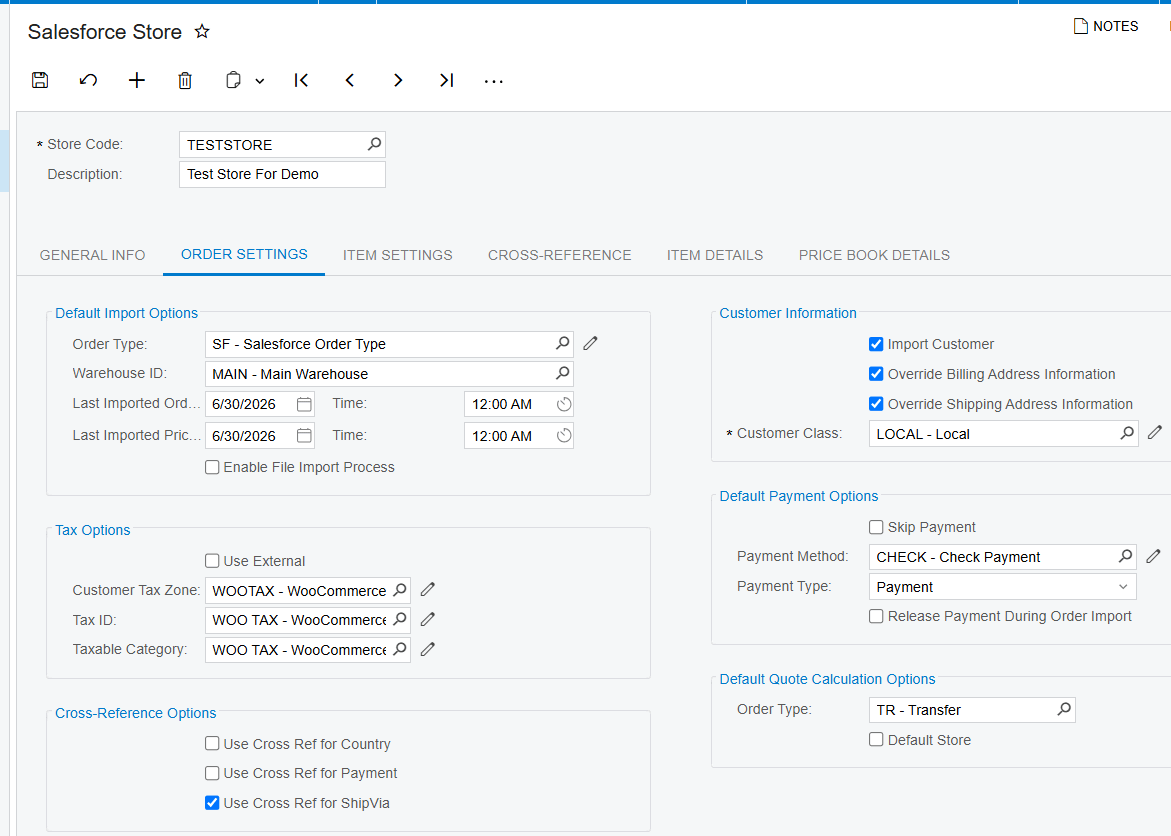
1. Set Order Type to the Acumatica document type that should receive the imported Salesforce order.
2. Select the default Warehouse ID that should be assigned during import.
3. Review Last Imported Order Date because the next Get Orders operation uses this date to retrieve new orders.
4. Choose whether Enable File Import Process should copy a file from the Salesforce order to the workspace on the Acumatica Sales Orders screen.
5. Configure tax behavior by selecting Use External for an alternative tax calculation such as Avalara, or by defining Customer Tax Zone, Tax ID, and Tax Category for comparable Salesforce taxes.
6. Enable only the needed cross-reference options, such as Payment, Country, or Ship Via, and create the corresponding mappings on the Cross-Reference tab.
7. Decide whether Import Customer and Import Item may create missing records, and configure the customer class and product numbering behavior required for those records.
8. Set the payment method and payment type, then decide whether Salesforce payment should be skipped or released during order import.
These prerequisites are intentionally concise. Connection setup and the broader inbound and outbound record flow are covered in the sibling article, How Salesforce CRM Data Flows into Acumatica ERP.
How to Import Salesforce Orders into Acumatica, Step by Step
The Biz-Tech Services Salesforce Acumatica Integration turns the import into a short processing sequence, but each step depends on the store settings already being complete.
Step 1: Confirm the Salesforce Store import date and defaults
Open the Salesforce Store configuration and verify the Last Imported Order Date, Order Type, Warehouse ID, and the customer, item, tax, payment, address, and cross-reference options. The last imported date controls which new orders the next retrieval can return, while the remaining defaults shape the Acumatica document.
Step 2: Retrieve eligible orders with Get Orders
Open Import Salesforce Orders and press Get Orders. The connector retrieves Salesforce orders related to the setup date on the Order Settings tab of the Salesforce Store. Review the displayed records before processing them.
Step 3: Inspect an order before importing it
Select an Order ID hyperlink to open Salesforce Orders Inquiry. This inquiry shows the initial Salesforce order details and, after processing, provides the associated sales order number and sales order status. Use it to confirm that you are working with the intended source order.
Step 4: Import selected orders or the full displayed list
Use Import when you want to process only selected orders. Use Import All when every displayed order is ready. Customer, item, payment, tax, address, warehouse, order type, file, and cross-reference rules are applied as configured on the Salesforce Store record.
Step 5: Confirm the created sales order
Return to Salesforce Orders Inquiry through the Order ID link and check the SO number and SO status. If a record does not import as expected, compare it against the store settings and the mapping rules described below before attempting another processing run.
Document Triggers: What Each Action Creates
Get Orders retrieves Salesforce orders associated with the configured date; it does not, by itself, represent the documented creation step. Import processes selected displayed orders, while Import All processes all displayed orders. The manual identifies the destination as the document type selected in Order Type and later identifies the result with an SO number and SO status in Salesforce Orders Inquiry.
Import Customer is a separate creation trigger inside the order process. When selected, it creates a new Acumatica customer with email and contact information and the configured customer class. When it is not selected, every imported order uses the default customer.
Import Item controls whether a missing Salesforce product may become a new item in Acumatica. When it is not selected, the integration searches for Inventory CD by the Salesforce Product SKU and requires a matching Acumatica item. Use Numbering Sequence for Product ID Generation can assign a unique product ID from a predefined numbering sequence when product creation is enabled.
Payment creation follows the payment settings. Skip Salesforce Payment imports the order without payment when selected. Otherwise, Payment Method and Payment Type shape the imported payment, and Release Payment during Order Import controls whether that payment is released during processing. The source documents sales order and payment outcomes; it does not document purchase order or invoice creation as part of this Salesforce order-import screen.
Mapping Rules That Decide What Appears on the Order
Cross-reference settings provide the documented mapping layer for Payment, Country, and Ship Via. To use one, select its corresponding checkbox in Order Settings and create its mapping on the Cross-Reference tab. For payment cross-references, Use Cross Ref for Payment must be enabled and the payment must not be skipped.
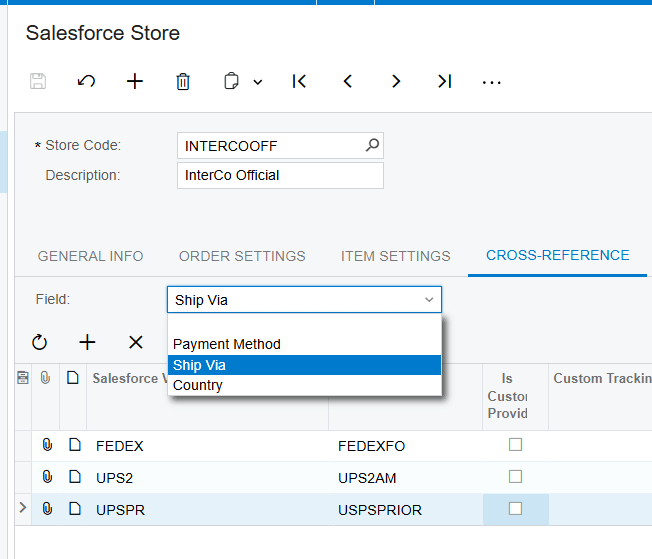
The customer rule decides whether the document uses a newly created customer or the configured default customer. The item rule matches Salesforce Product SKU to Acumatica Inventory CD unless item creation is allowed. The warehouse and order type defaults place the order in the configured destination.
Tax mapping follows one of two documented approaches. Use External enables alternative tax calculation, with Avalara given as the example. Customer Tax Zone, Tax ID, and Tax Category support importing similar taxes from Salesforce. The file option determines whether a Salesforce order file is copied to the Sales Orders workspace.
Address handling depends on the Override Billing Address Information and Override Shipping Address Information checkboxes. The manual says that selecting them puts the Salesforce order addresses on the sales order. Its description of the opposite case contains a contradiction, so verify actual behavior in your configured environment before depending on that sentence.
Validation and Common Exceptions
Credential validation begins with Test Credentials on the Salesforce Store. During order processing, the clearest documented validation exception concerns item matching: when Import Item is not selected and no Inventory CD matches the Salesforce Product SKU, the system displays "The item does not exist in the system." Resolve the item or allow configured item creation before retrying.
1. No orders appear after Get Orders: verify the Last Imported Order Date because retrieval uses that setup date.
2. An imported order has no payment: check whether Skip Salesforce Payment is selected.
3. A payment cross-reference is ignored: confirm Use Cross Ref for Payment is selected, a mapping exists, and payment is not being skipped.
4. The wrong customer appears: determine whether Import Customer is selected; otherwise, the connector uses the default customer for every imported order.
5. A product cannot be resolved: compare the Salesforce Product SKU with Acumatica Inventory CD, or review the Import Item and product numbering settings.
6. Taxes do not follow the expected route: review Use External versus Customer Tax Zone, Tax ID, and Tax Category.
7. An expected Salesforce file is absent: confirm Enable File Import Process is selected.
The documentation provides the one item-not-found message above but does not publish a broader catalog of import error text. For other failures, use the exact fields and inquiries named here to isolate the configuration branch involved rather than assuming an undocumented message or recovery action.
Where to Check Your Work
The Biz-Tech Services Acumatica Salesforce Integration exposes the most useful import checks in the store setup, processing screen, inquiry, and resulting sales order:
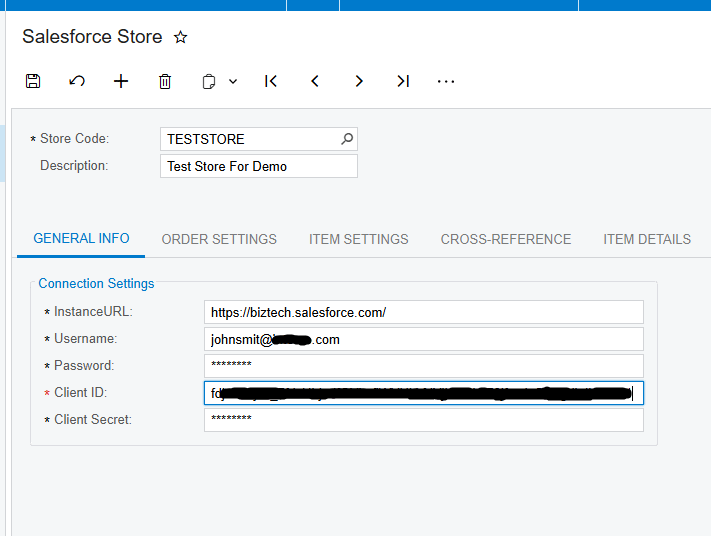
1. Salesforce Store - General Info: confirm the API credentials with Test Credentials under Actions.
2. Salesforce Store - Order Settings: verify Order Type and Warehouse ID.
3. Salesforce Store - Order Settings: check Last Imported Order Date before retrieving another set of orders.
4. Salesforce Store - Order Settings: review customer, item, tax, payment, address, and file-import selections.
5. Salesforce Store - Cross-Reference tab: confirm mappings for enabled Payment, Country, or Ship Via options.
6. Import Salesforce Orders: verify that Get Orders returned the expected records.
7. Import Salesforce Orders: confirm whether the intended records are selected before using Import, or whether the entire list is ready for Import All.
8. Salesforce Orders Inquiry: inspect the initial Salesforce order details through the Order ID hyperlink.
9. Salesforce Orders Inquiry: confirm the resulting SO number and SO status.
10. Sales Orders screen workspace: confirm that the Salesforce file was copied when Enable File Import Process is selected.
How to Import Salesforce Orders into Acumatica: Frequently Asked Questions
What does Get Orders do?
Get Orders retrieves Salesforce orders related to the Last Imported Order Date configured on the Order Settings tab of the Salesforce Store. Review the returned list before selecting Import or Import All.
What is the difference between Import and Import All?
Import processes only selected displayed orders. Import All processes every order displayed on the Import Salesforce Orders screen.
How can I tell whether an Acumatica sales order was created?
Click the Order ID hyperlink and use Salesforce Orders Inquiry to check the SO number and SO status. The Biz-Tech Services Salesforce Acumatica Integrator documents this inquiry as the place that connects the source order details with the resulting Acumatica sales order information.
Why does the item not exist error appear?
When Import Item is not selected, Acumatica searches Inventory CD using the Salesforce Product SKU. If it cannot find a match, the documented item-not-found error appears. Create or correct the Acumatica item, or review whether configured item creation should be enabled.
Why was the order imported without a payment?
Check Skip Salesforce Payment. When selected, it intentionally imports the Salesforce order without payment. If using a payment cross-reference, payment must not be skipped.
Can the import create a missing customer?
Yes. Import Customer creates a new customer using email, contact information, and the selected customer class. When the option is cleared, the default customer is used for every imported order.
Can the import create purchase orders or invoices?
The source documents importing Salesforce orders into the sales order document type selected in Order Type and checking the resulting SO number and status. It does not describe purchase order or invoice creation from this screen, so those outcomes should not be assumed.
Why did the imported address differ from the Salesforce order?
Review Override Billing Address Information and Override Shipping Address Information. The manual says selecting them uses Salesforce order addresses, but its opposite-case wording is internally contradictory. Validate the actual result in a test order before applying the setting broadly.
Work With the Biz-Tech Services Salesforce Connector
A reliable Salesforce order import starts with valid credentials and precise store defaults, then proceeds through Get Orders, record review, Import or Import All, and confirmation in Salesforce Orders Inquiry. Keep customer and item creation, payment handling, taxes, addresses, files, and cross-references aligned with the intended Acumatica sales order result.
If your team wants help configuring and validating this workflow, the Biz-Tech Services Acumatica Salesforce Integrator can support a source-grounded implementation. Visit https://biz-techservices.com to learn more about Biz-Tech Services and discuss your Salesforce and Acumatica requirements.
How to Create PayPal Invoices from Acumatica Orders
How to Create PayPal Invoices from Acumatica Orders
Creating PayPal invoices from Acumatica orders starts with a Sales Order in SO301000, where the Create Payment action prepares an Accounts Receivable payment and the Request PayPal Payment action sends a live invoice to the customer. This article shows the supported invoice-creation paths, the values each path uses, and the checks to make before sending a request.
The Biz-Tech Services PayPal Acumatica Integration keeps this work inside Acumatica and supports requests from a Sales Order, an Accounts Receivable invoice, or a standalone payment. The product guide does not document a purchase-order-to-PayPal-invoice workflow, so the steps below stay within those three supported entry points. Connection setup and the full status lifecycle are covered separately in How PayPal Payment Data Flows into Acumatica ERP.
Before You Start: What Must Be Configured
The Biz-Tech Services PayPal Acumatica Connector requires a published customization and a dedicated PayPal payment method before users can create invoices. Treat these items as prerequisites rather than part of the daily order workflow:
1. Confirm that the Accounts Receivable (AR) and Sales Orders (SO) modules are available.
2. Use a PayPal Business account. The guide states that personal accounts do not support the invoicing application programming interface (API).
3. In Payment Methods (CA205000), configure the Client ID, Client Secret, the appropriate sandbox or live base URL, the PayPal Means of Payment selection, and the Is PayPal Payment checkbox.
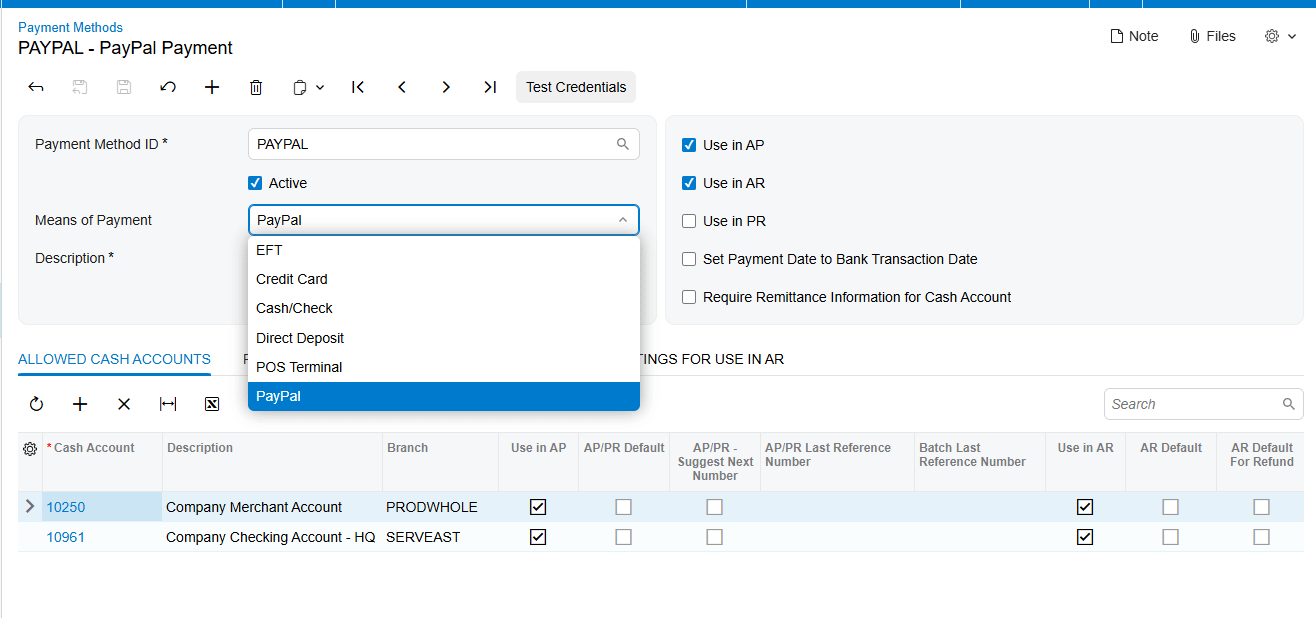
4. Use Test Connection and save only after the credentials are accepted.
5. Add the cash or bank account on the Allowed Cash Accounts tab so collected payments have a posting destination.
6. In Customer Payment Methods (AR303010), associate the customer with the PayPal payment method and enter the PayPal email address that will receive the invoice notification.
When the Sandbox Base URL contains a value, the system uses it and ignores the Live Base URL. Clear or leave the Sandbox Base URL blank when moving to production. The guide also requires outbound Hypertext Transfer Protocol Secure (HTTPS) access to the selected PayPal endpoint on port 443.
How to Create PayPal Invoices from Acumatica Orders, Step by Step
The Biz-Tech Services Acumatica PayPal Connector provides three supported entry points. Choose the one that matches the business document already present in Acumatica; each route ultimately creates or uses an AR Payment on Hold and sends a PayPal invoice.
Step 1: Open the Sales Order in SO301000
Navigate to Sales Orders (SO301000), open the order for which payment will be collected, and review the customer, currency, and order total. The guide identifies this as the most common route when payment is collected before or upon shipment.
Step 2: Create the Acumatica payment
On the PAYMENTS tab, click Create Payment. Acumatica reads the order total, currency, and customer details. Add the Cash Account and Payment Reference. After those values are present, the New Request PayPal Payment button appears.
Step 3: Send the PayPal invoice
Click New Request PayPal Payment. The customization creates a new AR Payment linked to the Sales Order, sends the PayPal invoice to the customer email, and stores the PayPal Invoice ID, Invoice URL, and Invoice Number on the payment. It places the payment on Hold and gives it the status Sent. A confirmation message appears, and the payment remains accessible from the Sales Order Payments tab.
Step 4: Use an AR invoice when billing is already posted
If shipment or service delivery has already produced an Accounts Receivable invoice, open the invoice from the Invoices screen or through the Sales Order. The guide identifies this screen as SO303000. Click Request PayPal Payment. The system creates a Payment pre-applied to the invoice, sends the PayPal invoice, and leaves the payment on Hold. The PayPal invoice amount is the outstanding balance on the AR invoice.
Step 5: Create a standalone request in AR302000
For a deposit or another collection that does not begin from a specific document, open Payments and Applications (AR302000) and create a payment. Select the customer and PayPal payment method. Confirm or adjust the PayPal Customer Email, enter the amount and an optional description, and optionally apply the payment through Orders to Apply or Documents to Apply. Click Send PayPal Request. The system sends the invoice and leaves the payment on Hold with status Sent.
Document Triggers: What Each Action Creates
Each action begins from a different business record, but the documented result is consistent: an AR Payment in Acumatica on Hold and a live PayPal invoice delivered to the customer email.
1. Create Payment on a Sales Order: prepares a payment using the order customer, currency, and total. After Cash Account and Payment Reference are added, the PayPal request action becomes available.
2. New Request PayPal Payment from the Sales Order: creates the linked AR Payment, sends the invoice, stores the PayPal identifiers and URL, and sets Sent status.
3. Request PayPal Payment from an AR invoice: creates a Payment already applied to the invoice and uses the invoice outstanding balance as the PayPal invoice amount.
4. Send PayPal Request from Payments and Applications: sends an invoice for the entered payment amount, whether the payment is standalone or optionally applied to an order or invoice.
The source does not describe a trigger from a Purchase Order or a mapping from Purchasing documents. Teams should not assume that a Purchase Order action creates a PayPal invoice based on this guide.
Mapping Rules That Decide What Appears on the PayPal Invoice
The Biz-Tech Services PayPal Acumatica Integrator derives request values from the selected entry point and preserves the returned PayPal references on the related payment.
1. Customer: comes from the Sales Order, AR invoice, or newly created AR Payment.
2. Customer email: is pre-filled from the Customer Payment Method and can be changed on an individual payment for a one-time override.
3. Amount from a Sales Order: comes from the order total when Create Payment is used.
4. Amount from an AR invoice: equals the invoice outstanding balance.
5. Amount from AR302000: is entered directly on the standalone payment.
6. Currency: is read from the Sales Order for the order-based path and appears with the amount in the processing view.
7. Applications: Orders to Apply and Documents to Apply can associate a standalone payment with a Sales Order or invoice.
8. Returned references: PayPal Invoice ID supports API calls, PayPal Invoice Number is the customer-facing number, and PayPal Invoice URL provides a direct link in PayPal.
The guide does not provide line-level item, tax, freight, discount, due-date, or purchase-order mapping rules for the PayPal invoice. It documents header-level customer, email, amount, currency, description, application, and reference behavior only.
Validation and Common Exceptions
Validate the record before sending because a request that has already gone to PayPal cannot simply be resent from the same payment. The guide states that the Payment Method ID becomes locked after an invoice is sent, which helps prevent an accidental change to the payment route.
1. Missing customer email: the documented Customer email not configured error means the customer lacks a Customer Payment Method with a PayPal email. Add the PayPal payment method and email on the customer Payment Methods tab.
2. Existing PayPal request: do not click Send PayPal Request when the payment was previously sent to PayPal. The guide does not document a duplicate-request recovery action.
3. Connection failure: verify the Client ID, Client Secret, selected environment URL, trailing slash, firewall, proxy, and outbound HTTPS access on port 443.
4. Sandbox selected unexpectedly: a populated Sandbox Base URL takes precedence even if the Live Base URL is also populated.
5. Unpaid request: Sent status and Hold are expected after creation. The request does not become a released payment until PayPal reports that it is fully paid and Acumatica performs a status check.
6. Cancellation: only a request in Sent status and still on Hold can be cancelled. Cancellation deletes the AR Payment and is irreversible; a new request must be created from scratch.
Beyond the named customer-email and connection cases, the guide does not publish a comprehensive validation sequence, required-field matrix, or exact error-message catalog for invoice creation. It also does not define purchase-order exceptions.
Where to Check Your Work
After sending, the Biz-Tech Services Acumatica PayPal Integration exposes the request on the AR Payment and in the Check PayPal Payment Status processing screen. Confirm these records and fields:
1. Sales Order Payments tab: open the AR Payment created from the order.
2. Payments and Applications (AR302000): confirm that the payment is on Hold and that its PayPal Invoice Status is Sent.
3. PayPal Customer Email: verify the notification went to the intended address.
4. PayPal Invoice ID: confirm that the internal identifier used for API calls was returned.
5. PayPal Invoice Number: confirm that the customer-facing invoice number was stored.
6. PayPal Invoice URL: use the stored direct link with the Open in PayPal action.
7. Linked Sales Order number: confirm the order relationship in the processing grid when the request began from SO301000.
8. Linked Invoice Nbr: confirm the Accounts Receivable invoice relationship when the request began from an invoice or was applied to one.
9. Currency / Amount: compare the processing-grid values with the source order, outstanding invoice balance, or manually entered payment.
10. Processing log: review successes and errors after Process or Process All checks selected payments.
Creating PayPal Invoices from Acumatica Orders: Frequently Asked Questions
What does the Sales Order action create in Acumatica?
The action creates a linked AR Payment, sends a PayPal invoice to the customer email, stores the PayPal invoice references, and keeps the payment on Hold with status Sent.
Which amount is sent when I request PayPal payment from an AR invoice?
The PayPal invoice amount matches the outstanding balance on the AR invoice. The resulting payment is pre-applied to that invoice.
Can I send a PayPal invoice for a deposit not tied to an order?
Yes. The Biz-Tech Services Acumatica PayPal Integrator supports a standalone payment in AR302000. Enter the customer, PayPal payment method, email, amount, and optional description, then click Send PayPal Request. Applying it to an order or invoice is optional.
Why does the PayPal request button not appear on the Sales Order payment?
The documented sequence is to click Create Payment and then add the Cash Account and Payment Reference. The New Request PayPal Payment button appears after those values are added. Also confirm that the selected payment method is configured for PayPal.
Why do I get the Customer email not configured error?
The customer does not have a Customer Payment Method with a PayPal email address. Configure it in AR303010 or on the customer Payment Methods tab before retrying.
Can I send the same AR Payment to PayPal again?
The guide says a payment must not have been sent previously before Send PayPal Request is clicked. It does not document a resend workflow for the same payment.
Can an Acumatica Purchase Order create a PayPal invoice?
The product guide does not document any Purchase Order entry point. It documents Sales Orders, Accounts Receivable invoices, and Payments and Applications only.
Why is a newly created PayPal payment still on Hold?
Hold with Sent status is the expected state immediately after the invoice is sent. Acumatica checks PayPal on demand, and the payment is released only after PayPal reports it fully paid and a status check is triggered.
Work With the Biz-Tech Services PayPal Integration
A reliable order-to-invoice process starts with the right PayPal payment method, customer email, cash account, and source document. From there, users can create a linked request from SO301000, bill an outstanding AR invoice, or send a standalone request from AR302000 while retaining PayPal identifiers on the Acumatica payment.
If your team wants help implementing this order-focused workflow, the Biz-Tech Services PayPal Acumatica Integration team can help align the documented PayPal invoice actions with your Acumatica processes. Visit https://biz-techservices.com to learn more about the Biz-Tech Services Acumatica PayPal Connector.
Check here for details - https://www.youtube.com/watch?v=wkjPKdLzv2M
How to Import CommerceHub Purchase Orders into Acumatica
How to Import CommerceHub Purchase Orders into Acumatica
Importing CommerceHub purchase orders into Acumatica starts on the Import Purchase Orders screen, where a user selects a store code, chooses specific orders or the full available set, and processes them into Sales Orders. This task-focused guide explains the documented prerequisites, import actions, mappings, acknowledgements, validation points, and recovery path for failed orders.
The Biz-Tech Services CommerceHub Acumatica Connector uses Secure File Transfer Protocol (SFTP) and text files rather than direct application programming interface (API) requests. The earlier article, How CommerceHub Files Flow Through Acumatica ERP, follows that complete inbound and outbound file path; here, the emphasis is the purchase-order import itself and the Acumatica records that users should inspect afterward.
Before You Start: What Must Be Configured
The Biz-Tech Services Acumatica CommerceHub Connector adds a CommerceHub workspace and process-specific screens after its customization package is published. Before importing an order, confirm the following documented configuration elements are ready:
1. SFTP file exchange is available. CommerceHub data reaches Acumatica through text files, with FileZilla described in the documentation as the intermediary transfer tool.
2. The required store code is configured. Store codes separate configurations for import and export processes and can carry values such as Transaction Type, Description, Default Customer, and Document Type.
3. Item cross-references are complete. The Cross-reference tab maps Acumatica items to the item IDs contained in inbound order files.
4. A default customer is defined for the store configuration. Imported CommerceHub customers are not created in Acumatica; the connector assigns the default customer to each resulting Sales Order.
5. Users know where to review Error Log entries and how to reach the Import Failed Purchase Orders screen if an order does not complete.
For a broader configuration review, use the sibling article CommerceHub Acumatica Connector Configuration Checklist. It covers the setup foundation; the steps below begin once that foundation is in place.
How to Import CommerceHub Purchase Orders into Acumatica, Step by Step
The Biz-Tech Services CommerceHub Acumatica Integration presents the import as a controlled processing task. The documentation supports selection by store code, processing selected orders, or processing all available orders.
Step 1: Open Import Purchase Orders
Open the CommerceHub workspace in Acumatica and go to Import Purchase Orders. This is the screen dedicated to purchase orders received from CommerceHub.
Step 2: Select the correct store code
Choose the store code for the purchase orders you intend to import. This choice matters because the connector uses store codes to apply distinct settings and functionality to individual import and export processes. Confirm the store before processing so the intended default customer, document type, transaction type, and description settings govern the import.
Step 3: Review the available purchase orders
Review the orders presented for the selected store code. The source does not document column names, filters, or a preview procedure, so use the visible order information on the screen and your internal control process to decide which records belong in the current run.
Step 4: Process selected orders or process all
To import only chosen purchase orders, select those orders and click Process. To import every available order for the current selection, click Process All. Use the narrower Process action when you need to control the batch; use Process All only when all displayed orders are ready.
Step 5: Find the created records in Sales Orders
After a successful import, the CommerceHub purchase order appears in the Sales Orders screen as a Sales Order. The documentation does not describe creation of an Acumatica Purchase Order from this inbound file. This distinction is important: the incoming CommerceHub record is called a purchase order, while the documented Acumatica result is a Sales Order.
Step 6: Verify the customer and address
Confirm that the Sales Order carries the configured default customer. Then review the Addresses tab. Although the customer master record is not imported from CommerceHub, the default address on the Sales Order is overridden with the actual customer address received on the imported order.
Step 7: Review acknowledgement status
The Sales Order includes Acknowledgement and PO Acknowledgement fields. Both begin with an Open status. While they remain open, the order is available on the Export CommerceHub Acknowledgment and Export CommerceHub PO Acknowledgment screens. After each acknowledgement is processed, the order leaves the corresponding export screen and its acknowledgement status changes to Closed.
Step 8: Recover orders that fail
If an order fails during Import Purchase Orders processing, select the applicable store code on Import Failed Purchase Orders and use that screen to import the failed order. Review the Error Log tab and the CommerceHub Errors screen for recorded details before retrying. The manual identifies these review locations but does not publish a catalog of exact error messages or corrective actions.
Document Triggers: What Each Action Creates
The documented trigger chain is concise and should be interpreted literally:
1. Process on Import Purchase Orders imports the selected CommerceHub purchase orders.
2. Process All imports all purchase orders available under the current screen selection.
3. A completed import creates a Sales Order in Acumatica; the source does not state that this step creates an Acumatica Purchase Order or invoice.
4. Sales Order creation initializes the Acknowledgement and PO Acknowledgement fields as Open.
5. An Open acknowledgement makes the order available on its related CommerceHub acknowledgement export screen.
6. Processing each acknowledgement removes the order from that export screen and changes its related status to Closed.
7. An invoice is not documented as part of the import trigger. Separately, Export CommerceHub Invoices displays orders that are invoiced or released for a selected store code.
8. A shipment is also a later outbound event. Export CommerceHub Shipment displays orders with Confirmed shipment status for the selected store code.
Mapping Rules That Decide What Appears on the Order
Several mapping choices determine how the inbound file becomes an Acumatica Sales Order:
1. Store code settings define process-specific values, including Transaction Type, Description, Default Customer, and Document Type.
2. The Cross-reference tab pairs the item IDs contained in the inbound file with Acumatica items.
3. The connector does not import the CommerceHub customer as a new customer record. It assigns the configured default customer.
4. The Addresses tab on the resulting Sales Order uses the actual customer address received from the order to override the default address.
The source does not document field-by-field line mappings, unit-of-measure conversions, tax logic, price precedence, or behavior for an unmapped item. Those details should not be assumed from other connectors. If a resulting order is incomplete, compare the inbound file, the Cross-reference tab, the active store-code configuration, and the recorded error information.
Validation and Common Exceptions
Validation should focus on the few outcomes the product documentation explicitly describes.
The purchase order does not appear in Sales Orders
First confirm that the intended store code was selected and that the order was included in the Process selection or the Process All run. Then review the Import Failed Purchase Orders screen, Error Log tab, and CommerceHub Errors screen. The source provides these locations but no exact error text.
The Sales Order shows the default customer
This is expected behavior. CommerceHub customers are not imported as customer records; the configured default customer is assigned to the Sales Order. Validate the actual customer address separately on the Addresses tab.
An item does not match the expected Acumatica inventory item
Review the Cross-reference tab, which maps Acumatica items to item IDs in the inbound file. The manual does not define the error or fallback result for a missing cross-reference, so rely on the recorded order error rather than assuming how the connector resolves it.
Acknowledgements remain open
An Open status means the acknowledgement is still pending. Look for the order on both acknowledgement export screens and process the applicable records. The statuses change to Closed after those acknowledgements are processed.
A failed order needs another import attempt
Use Import Failed Purchase Orders with the appropriate store code. Review available error details before retrying so the underlying mapping or file problem is not repeated.
Where to Check Your Work
The Biz-Tech Services CommerceHub Acumatica Integrator keeps the key checkpoints inside the CommerceHub workspace and the resulting Sales Order. Check these locations after each import:
1. Import Purchase Orders: confirm the intended store code and whether Process or Process All was used.
2. Sales Orders: confirm that a Sales Order was created from the imported CommerceHub purchase order.
3. Customer on the Sales Order: confirm the configured default customer was assigned.
4. Addresses tab: confirm the order carries the actual customer address received from CommerceHub.
5. Order lines: compare item results with the Cross-reference tab and the item IDs in the inbound file.
6. Acknowledgement field: confirm whether it is Open or Closed.
7. PO Acknowledgement field: confirm whether it is Open or Closed.
8. Export CommerceHub Acknowledgment: check for orders whose acknowledgement remains open.
9. Export CommerceHub PO Acknowledgment: check for orders whose PO acknowledgement remains open.
10. Import Failed Purchase Orders: find orders that failed during the original import process.
11. Error Log tab: review order errors recorded during import and export; use Purge Logs only when deleting all displayed error messages is intentional.
12. CommerceHub Errors: review errors received from CommerceHub across the connector processes.
Importing CommerceHub Purchase Orders into Acumatica: Frequently Asked Questions
Does a CommerceHub purchase order create an Acumatica purchase order?
No such result is documented. The manual says that after the CommerceHub purchase order is imported, it appears in the Sales Orders screen. It does not say the import creates an Acumatica Purchase Order.
Can I import only selected CommerceHub orders?
Yes. Select the specific orders and click Process. Process All imports every order available under the current selection.
Why does the imported Sales Order use a default customer?
The connector does not import customers from CommerceHub. It assigns the default customer configured for the process while overriding the Sales Order address with the actual customer address received in the order.
Where do I map CommerceHub item IDs to Acumatica items?
Use the Cross-reference tab. The Biz-Tech Services Acumatica CommerceHub Integration uses this mapping to associate Acumatica items with the item IDs contained in the inbound order file.
What should I do when a CommerceHub order fails to import?
Check Error Log and CommerceHub Errors for available details, then choose the related store code on Import Failed Purchase Orders. The source does not provide a complete list of error messages, so the recorded details are the authoritative starting point.
Why is an imported order visible on an acknowledgement export screen?
A newly generated order starts with Open values in its Acknowledgement and PO Acknowledgement fields. It remains visible on the corresponding export screen until that acknowledgement is processed, after which the status becomes Closed.
Does importing the order also export its shipment or invoice?
The documentation treats those as separate outbound processes. Confirmed shipments appear on Export CommerceHub Shipment, while invoiced or released orders appear on Export CommerceHub Invoices for the selected store code.
Work With the Biz-Tech Services CommerceHub Connector
A reliable CommerceHub purchase-order import depends on the right store code, complete item cross-references, deliberate processing, and a disciplined review of the resulting Sales Order and acknowledgement fields. Failed records should be handled through the documented failed-order and error screens instead of bypassing the connector workflow.
If your business needs help configuring, validating, or troubleshooting the Biz-Tech Services Acumatica CommerceHub Integrator, visit https://biz-techservices.com to work with a team experienced in Acumatica commerce integrations.
Check here for more details - https://www.youtube.com/watch?v=ExAeaMohneU

